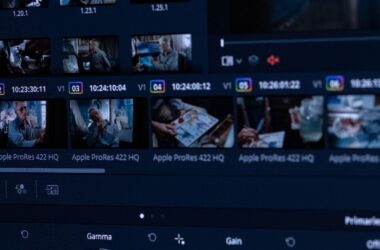
A client sends over a 62-minute interview and a one-line brief: “can we get ten shorts out of this?” They want captions, their logo in the corner, vertical for Reels and TikTok, square for LinkedIn, and they’d like a look at them by Thursday. Two years ago that was a day and a half of scrubbing, reframing, and typing captions by hand. The AI clipping tools have collapsed the scrubbing part into a coffee break. What they haven’t collapsed is everything after the coffee break, and that’s where the tools split into two very different products.
This guide is for editors delivering short-form cuts to clients, not creators clipping their own podcast. The difference matters. A creator can live with a burned-in MP4 and a watermark on the free tier. You can’t, because the client will come back with “can you swap the second line of that caption” and “legal wants the third clip trimmed,” and if the tool only gave you a flattened video, every note means re-uploading and re-rendering. So the questions we sorted these tools on are the boring ones: does it hand you a timeline you can open in Premiere or Resolve, can client footage legally go through it, and can it hold a brand kit and a second seat.
Last updated: September 2026. Some links below are affiliate links. Buy through them and it helps keep the site running, at no extra cost to you. Prices and terms checked September 2, 2026, on each vendor’s live pricing and terms pages; subscription pricing drifts, so read them as current at the time of writing.
TLDR
If you just want the answer: Opus Clip on the Pro plan ($29 a month, or $14.50 a month billed annually) is the clipping tool for client work, because it is the only one of the cloud clippers that exports a Premiere or Resolve XML of every clip it picks. Submagic Pro with the Magic Clips add-on ($39 plus $19 monthly, or $23 plus $12 annually) is second, and it wins outright if the job is caption-led and the client never asks for the project. AutoCut is the pick if the footage is not allowed to leave your machine: it runs inside Premiere and Resolve and builds the clips as sequences in your own project. Gling is the budget path, with XML export on every tier including the free one. Descript only makes the list if the client’s podcast already lives there. CapCut is covered below as a warning, not a pick.
The question that sorts the whole category
Every clipping tool does the same first step. You upload a long video, a model reads the transcript, and it hands back a stack of candidate clips with a virality score and auto-captions. They are all fine at this. The differences in clip selection between the top tools are smaller than the difference between a good interview and a dull one, and no tool fixes a dull interview.
What separates them is what you get back. Four of the tools below can hand you a timeline: AutoCut builds sequences natively inside your NLE, Descript and Gling export XML, and Opus Clip exports XML on its Pro plan. Everything else, Submagic included, hands you a rendered MP4 with the captions burned in. For a creator posting their own clips, the MP4 is the deliverable. For an editor, the MP4 is a rough cut you can’t open. The moment the client wants a caption fixed, the client’s logo moved, or a music bed added, an XML means a two-minute change in Premiere; an MP4 means going back to the web app, editing there, and re-rendering. Multiply that by ten clips and three rounds of notes and you have your answer on which product class you’re buying.
The second sort is the one nobody reads until it bites: the terms. Client footage is not yours. Several of these tools take a license to whatever you upload, one of them takes a perpetual and transferable one, and one free tier is contractually non-commercial. We read the terms on September 2, 2026 and the relevant sentences are quoted further down, so you can show the client rather than reassure them.
The picks
Best overall for client work: Opus Clip Pro ($29/month, $14.50 annual)
Opus Clip is the tool to buy for client shorts, and the reason is one line on its pricing page: “Export to Adobe Premiere Pro & DaVinci Resolve,” Pro plan and up. Run the interview through it, pick the eight clips you like from the twenty it suggests, and export. You get an XML, the trimmed media segments, and an .srt of the captions per clip, and you finish the job in your own timeline with the client’s fonts and your own music. Pro is $29 a month, or $174 a year, which Opus bills as $14.50 a month. That buys 3,600 credits a year, available up front rather than metered monthly, a workspace with two seats (up to four), brand templates, two custom fonts, uploads up to 30GB, and 4K delivery when the source is 4K.
Two things to know before you lean on the XML. Opus’s own Premiere import guide says the auto captions “will be exported as overlays and cannot be edited in Premiere Pro,” so finish caption edits inside Opus before you export, or rebuild them from the .srt in Premiere’s caption track. And XML export supports sources up to 1.5 hours, which covers an interview and not a three-hour webinar. The Free plan is not a client tool at all: 60 credits a month, a watermark, no editing, clips that stop being exportable after three days, and a terms clause that limits it to personal, non-commercial use. Starter at $15 a month drops the watermark but has no XML export and is monthly-only. For paid work, it’s Pro or nothing.

Best captions and brand kits: Submagic Pro + Magic Clips ($39 + $19/month, $23 + $12 annual)
Submagic started as a captioning tool and it still has the best captions in the category: cleaner templates, per-caption emoji and keyword styling, translated captions, and a brand kit on Pro so each client’s fonts, colors, and overlays live in their own preset. Clipping is an add-on called Magic Clips, $19 a month on top of any plan (or $12 billed annually), which turns 10 long videos a month into clips. Pro is $39 a month or $23 annually, per member: 40 videos a month up to 5 minutes each, 2K export, brand kit, custom fonts, and publishing straight to TikTok, YouTube, and Instagram. Business at $69 (or $41 annually) is where you get 4K at 60 frames, 30-minute videos, ten custom templates, logos, and a custom words dictionary, which matters the first time a client’s product name gets transcribed as three different words.
What it won’t give you is a timeline. Submagic is MP4 out, so it suits the job where the client wants finished verticals and you’re the one applying the notes inside Submagic. If you already cut the clips yourself in the NLE and only want the caption polish, that works too: upload your own cut, caption it, export. Starter at $19 a month ($12 annually) handles that for a solo editor with 15 videos a month at 1080p and no watermark, but it has no brand kit, so anything with more than one client on the books starts at Pro.
Best inside the NLE: AutoCut AI ($14.90/month billed annually, $19.80 monthly)
Some clients will not let their footage touch a cloud service, and some editors don’t want to explain to a client why their unreleased interview is sitting in a web app’s storage. AutoCut is the answer for both. It’s a plugin for Premiere Pro and DaVinci Resolve, and its AutoViral feature finds the clips in a long video and builds them as sequences inside the project you already have open, with AutoCaptions styling the captions natively and AutoResize handling the reframe. You don’t re-import or download anything, and the master never leaves the drive. AutoCut’s terms say it plainly: “project files, editing timelines, and videos remain on your device,” with the desktop app uploading “a low-quality audio extract” for the transcript.
You want the AI plan, not Basic. Basic is $6.60 a month billed yearly ($79) and only includes silence removal; the AI plan is $14.90 a month billed yearly ($178.80), or $19.80 monthly, and that’s the tier with AutoViral, AutoCaptions, AutoZoom, and the B-roll and bad-take tools. There’s a 14-day trial with no card. The trade-off is that clip selection happens in the same plugin panel as everything else, so there’s no virality dashboard to screen-share with a client, and licenses are sold per seat. For a two-editor shop the Enterprise tier is $19.90 per license a month, billed yearly.
Best budget: Gling Plus ($20/month, $10 annual)
Gling is the cheapest legitimate path from a long recording to clips you can finish in an NLE, because XML export to Premiere, Final Cut Pro, and Resolve is on every tier, including the free one. Free gives you one hour of AI-edited media a month. Video exports carry a watermark, but XML export is listed on the free tier too, which makes it a real test drive rather than a demo. Plus is $20 a month, or $10 billed annually, for 10 hours a month and clean exports. Pro doubles the price for 30 hours.
What you give up is polish. The captions are plainer than Submagic’s, there’s no brand kit, and Gling’s terms of service pages didn’t render for us on two attempts, so we have no rights language to quote. Treat it as a tool for your own footage or for clients who’ve agreed in writing, and do the branded finish in Premiere.
Already-own-it pick: Descript Creator ($24/month annual, $35 monthly)
If the client’s podcast is produced in Descript, don’t move it. Descript’s Create Clips does the clipping, and its timeline export, available on Creator and above, hands you Premiere XML, Final Cut Pro XML, EDL, or AAF with the media and source timecode intact. Creator is $24 a month billed annually or $35 monthly, with 4K export and a team of three; Hobbyist at $16 annually is 1080p and no timeline export, which rules it out here. Business at $50 annually adds Brand Studio and a team of five.
It’s not a one-click clipper. Descript is a text-based editor first, and finding clips means more reading and more manual selection than Opus’s stack of scored candidates. That’s the right trade if the transcript is the product anyway. It’s the wrong one if you have ten interviews to clip by Friday.
Side by side
| Tool | Plan for client work | Monthly / annual | Timeline out | Max export | Brand kit | Seats |
|---|---|---|---|---|---|---|
| Opus Clip | Pro | $29 / $14.50 | Premiere + Resolve XML, .srt, media segments (captions arrive as overlays) | 4K when the source is 4K | Brand templates, 2 custom fonts | 2 per pack, up to 4 |
| Submagic | Pro + Magic Clips | $39 + $19 / $23 + $12, per member | No (MP4) | 2K on Pro, 4K/60 on Business | Yes on Pro, logos and dictionary on Business | Per member |
| AutoCut | AI plan | $19.80 / $14.90 | Native sequences in Premiere or Resolve | Whatever the NLE exports | Your NLE’s | 1 machine per license |
| Gling | Plus | $20 / $10 | Premiere, FCP, Resolve XML on every tier | MP4/MP3 (plain) | None | None advertised |
| Descript | Creator | $35 / $24 | Premiere XML, FCPXML, EDL, AAF (Creator and up) | 4K | Brand Studio on Business | 3 (Business 5) |
Whose footage is it: the rights clauses, quoted
Terms checked September 2, 2026. These are the sentences that decide whether a client’s unreleased interview can go through a tool, and they are worth pasting into the client agreement rather than summarizing from memory.
| Tool | Commercial use | What you grant the vendor over uploaded footage |
|---|---|---|
| Opus Clip | Free is non-commercial: “You will only use the Services for your own internal, personal, non-commercial use, and not on behalf of or for the benefit of any third party.” Then: “if you are a user of Paid Services, you are licensed to use the Services for commercial uses.” | A license to “translate, modify (for technical purposes…) and reproduce and otherwise act with respect to such User Submissions.” No date on the page. |
| Submagic | Silent on commercial use and on output rights. It does say “results generated by the Platform may not be unique and that other customers may obtain identical or similar results.” | “You retain all rights to the Content you submit. However, by using the Platform, you grant TURBO STUDIO a worldwide, non-exclusive license to use, modify, reproduce, and distribute such Content on and through the Platform.” It may also use your name as a business reference unless you opt out in writing. No date on the page. |
| AutoCut | “You may use the Services and Content in connection with your commercial endeavors, subject to these Terms.” | “project files, editing timelines, and videos remain on your device. You retain ownership of your content.” The desktop app “may upload a low-quality audio extract” for transcription. |
| Descript | “as between you and Descript, you own all right, title, and interest in and to any Input and Output, to the extent protectable under applicable law.” | “a perpetual, irrevocable, nonexclusive, royalty-free, sublicensable, fully paid, worldwide license to create derivative works from, access, reproduce, distribute, process, publish, display, perform, adapt, modify, analyze, and otherwise use the User Content.” |
| Gling | Terms pages did not render on two attempts. No quote; ask the vendor before uploading client footage. | |
| CapCut (US terms, last updated April 15, 2026) | See the warning below. | “an unconditional, non-exclusive, royalty-free, fully transferable, sub-licensable, perpetual and worldwide license to use your User Content,” granted to “TikTok USDS Joint Venture and our affiliates, agents, services providers, partners and other connected third parties.” Section 15 says the Section 9 rights survive termination. |
Read as a ladder, from safest to least safe for someone else’s footage: AutoCut, where the video never uploads; then Opus on a paid plan, Submagic, and Descript, which take the standard hosting-style license every cloud editor takes, with Descript’s being the broadest of the three; then anything whose terms you can’t read; then CapCut. A watermarked free tier is never a client deliverable, and Opus Free is contractually not a client tool at all.
The CapCut warning
CapCut’s long-video-to-shorts tool is good, it’s cheap, and it pays affiliates well, and we are not linking it. The US terms, last updated April 15, 2026, grant TikTok USDS Joint Venture and “other connected third parties” a perpetual, fully transferable, sub-licensable license to anything you upload, and Section 15 keeps those rights alive after you close the account. For your own vlogs that’s a choice you can make. For a client’s unreleased interview it’s a license you have no right to grant, and the clause is broad enough that a careful client’s lawyer will say no. We treat it the same way we treat licensing-unsafe tools everywhere on this site: covered so you know why it’s missing, never recommended.
Covered, not picked
Captions, now part of Mirage, is mobile-first, credit-metered, and has no desktop app; its affiliate program is discontinued, which is why there’s no link, but that isn’t why it’s off the list. Vizard, Klap, and Riverside’s Magic Clips are all MP4-out cloud clippers with no timeline export, so they sit behind Submagic for the same job. Riverside is worth a sentence only if you already record there, in which case its clips are a free bonus and its terms are the ones to read. Premiere Pro itself is the finishing tool in every workflow above, not a clipper: Auto Reframe and Speech to Text handle the reframe and the caption track once the XML lands, and the Premiere single-app plan is where most of these projects end.
How we’d run the job
Upload the interview to Opus Clip Pro (or run AutoViral if the client won’t allow an upload), pick your clips from the scored stack, and fix the captions inside Opus before you export, since they travel as overlays. Export the XML package and open it in Premiere. Drop in the client’s brand kit from a MOGRT, add the music bed, trim to the notes, and export your masters from the NLE, not the web app, so the archive copy is a project file rather than a rendered MP4. Send the client a review link, apply their notes in the timeline, and re-export only the clips that changed. If the client wants Submagic-grade captions and nothing else, run your finished clips through Submagic as the last step, one client brand kit per preset. Bill the tool as a line item. At $29 a month it’s the cheapest assistant editor you’ll ever hire.
FAQ
Can I use Opus Clip’s free plan for a client job?
No. The terms limit the free service to “internal, personal, non-commercial use,” the clips carry a watermark, and they stop being exportable after three days. Pro is the client tier.
Which clipping tools give me an XML for Premiere or Resolve?
Opus Clip on Pro, Gling on every tier, and Descript on Creator and above. AutoCut skips the XML step by building the sequences inside your NLE. Submagic, Captions, Vizard, Klap, Riverside, and CapCut export finished MP4s.
Do the AI captions come across in the XML?
From Opus, they arrive as rendered overlays you can’t edit in Premiere; the .srt in the export package is what you rebuild from. Descript and Gling export .srt files alongside the timeline. AutoCut’s captions are native graphics in the NLE, so they stay editable.
Is it legal to run a client’s footage through these tools?
It depends on the license you grant the vendor and on what your client agreement allows. AutoCut keeps the video on your machine. Opus, Submagic, and Descript take a hosting license, Descript’s a broad and perpetual one. CapCut’s grant is transferable and survives termination, so get written client consent or don’t use it. When in doubt, paste the clause into the agreement.
What resolution can I deliver?
Opus Pro delivers 4K when the source is 4K. Submagic is 2K on Pro and 4K at 60 frames on Business. Descript is 4K from Creator. AutoCut and Gling hand the render to your NLE, so the ceiling is your master.
In conclusion
Buy Opus Clip Pro if you finish in Premiere or Resolve and the client’s notes land in your timeline, which is most client work. Buy Submagic Pro when captions and brand kits are the job and a finished MP4 is the deliverable. Buy AutoCut when the footage can’t leave the building. Start on Gling if the budget is zero and you’re fine doing the polish yourself. And read the rights table before you upload anything you don’t own. The tools are cheap. Losing a client over an upload clause is not.
And that’s it. Prices and terms are what we read on September 2, 2026; this lane changes monthly, so check the live pages before you commit a client to a plan. If a tool you use hands back a timeline we missed, leave a comment. For the rest of the AI post-production lane, start at our AI tools for video creators hub.