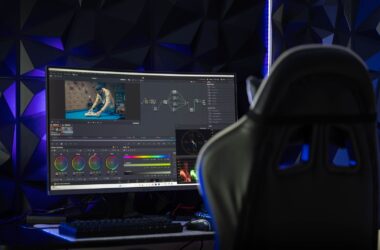
J. K. L. In. Out. Ripple delete. Your left hand runs a whole percussion section every edit day, and it does it on whatever keyboard happened to be on the desk when you set up the bay. We obsess over GPUs and monitors, then type two million keystrokes a year on a $12 board that came free with a Dell in 2019. Make it make sense.
This is the companion piece to the mouse guide, and the same philosophy applies: editing has different priorities than gaming or generic office work, and keyboard marketing serves those other two crowds. What an editor needs is comfort across a ten-hour day, shortcuts your fingers can find in a dark suite, and painless switching between machines. What an editor does not need is 8,000Hz polling and a switch debate. I’ll say the quiet part now: wireless latency does not matter for editing. No credible tester claims a Bluetooth keyboard is too slow for timeline work, because it isn’t. Buy wired for battery-freedom reasons if you like, never for speed.
Last updated: September 2026. Some links below are affiliate links. Buy through them and it helps keep the site running, at no extra cost to you. I only point at gear I’d be comfortable handing to a friend. Prices re-read on the live listings September 2, 2026, and there’s a new section on mechanical boards below.
TLDR
If you just want the answer: the Logitech MX Keys S is the default serious-work keyboard for editors, and it pairs (literally) with the MX Master mouse half the industry already uses. If you’re still learning your NLE’s deep shortcuts, the Logickeyboard Astra 2 prints them on the keys and backlights them, which is exactly as useful as it sounds. Budget pick, the AULA F75, is about sixty-five bucks now and still embarrasses boards at twice the price. Details, trade-offs, and the wrist-saver pick below.
Best all-around: Logitech MX Keys S
Three years on the market, no successor announced, still the board to beat, and the one in every colorist’s desk photo. The low-profile scissor keys are quiet enough for a client session and comfortable across a full shift. The backlight fades in when your hands approach, which sounds like a gimmick until you’re renaming clips at 11pm in a dim grading suite. Easy-Switch pairs three devices, so hopping from the Mac laptop to the PC tower is one keypress… an underrated editor feature, since half of us live in both worlds. And Logi Options+ Smart Actions can chain app-specific shortcuts into single keys: one press on the numpad triggers your whole export ritual. Full layout, real F-row, real numpad, so every default Premiere and Resolve binding just works.
The street price sits around $120, which is cheeky for scissor switches, so buy on the frequent $95-to-$110 sales (it hit $60 on Prime Day, and deals like that recur). The clever per-app remaps live in Logitech’s software, not the board, so they don’t follow you to a locked-down client machine. And running the backlight hard drops battery from months to about ten days. None of those change the verdict; this is still the safe answer.

Best editing-specific: Logickeyboard Astra 2
The one pick built for our industry specifically: a full-size board with the actual NLE shortcuts printed on color-coded keycaps, under a five-level dimmable backlight. Editors who already dream in shortcuts will shrug. Editors still building that muscle memory (or assistant editors bouncing between Premiere, Avid, and Resolve rooms) get something no generic board offers: the answer to “wait, what’s ripple trim again” is literally glowing under your finger. It comes in Mac and PC variants for Premiere Pro, DaVinci Resolve, the Premiere-plus-After-Effects combo, and Avid, with a built-in USB hub as a bonus. I’ve linked the Premiere PC version below; the other variants are a search away on the same shelf.
It’s wired-only and wants two USB-A ports, which on a modern laptop means a dock (I have thoughts on those). At $160 you’re paying for printed keycaps and a backlight; the typing feel is ordinary scissor-key stuff. And the legends assume default shortcut layouts, so if you’ve remapped your NLE into something unrecognizable, you’d be buying decoration. For default-layout editors, though, it’s a learning accelerator.

Best mechanical: Keychron K3 Max
“Mechanical keyboards are too tall and too loud for an edit bay.” Correct, mostly, which is why the pick here is low-profile: real tactile switches without the wrist-cranking height of a full gaming board. The K3 Max‘s party trick for editors is QMK/VIA support, meaning your remaps live in the keyboard’s own firmware. Map J-K-L behaviors, ripple deletes, entire macro chains, and they travel with the board to any machine, no software install, no IT permission slip. Freelancers who float between facilities: that’s the feature. Tri-mode connectivity (Bluetooth for three devices, 2.4GHz dongle, or USB-C), hot-swappable switches for later tinkering, and Mac plus Windows keycaps in the box.
Even quiet low-profile switches are audible next to scissor keys, so consider the room (and the mic) before bringing it to shared spaces. The 75 percent layout drops the numpad, which matters if timecode entry is muscle memory for you. Backlight-on battery life is a weekly-charge affair. And Keychron ships new variants constantly (there’s a pricier hall-effect K3 line now, aimed at gamers), so double-check you’re buying the K3 Max, which remains the editor-sensible one at $104.99 when I checked in September.
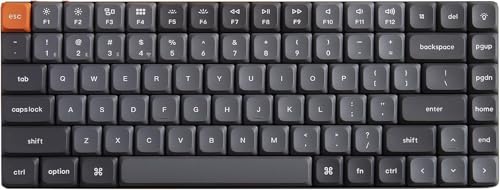
Best ergonomic: Kinesis Freestyle2 Blue
Same speech as the mouse guide, because it’s true here too: RSI ends editing careers, and the keyboard is half the equation. The Freestyle2 is a true split board, two halves connected by a cable with up to nine inches of separation, so your shoulders sit square instead of funneling your wrists toward each other for ten hours. The editor-critical detail: the key layout is completely standard. Most ergo boards make you relearn typing; this one moves your muscle memory into a healthier position on day one. The Blue version pairs three devices over Bluetooth (separate Mac and PC models), and battery life is around 300 hours of typing.
Tenting, the tilt that delivers a big chunk of the ergonomic benefit, costs about $45 extra as a lift kit, and you should budget for it rather than pretend you won’t need it. No backlight and no numpad at a price where the MX Keys S has both. The membrane typing feel is mid. You’re paying for the geometry, and if your wrists have started sending warning shots, the geometry is worth every penny.

Best budget: AULA F75
Around sixty-five dollars as of September 2026 (it was fifty in July, and the line moves). Tri-mode wireless, hot-swappable pre-lubed switches, gasket-mounted with actual sound dampening, PBT keycaps, and a rotary knob that maps beautifully to volume or timeline zoom. That spec list at that price sounds like a misprint, and RTINGS’ testing confirms it’s not: the F75 delivers. The 75 percent layout keeps the F-row and arrow keys editors use, unlike the 60 percent boards infesting this price bracket. As a first “real” keyboard or a B-station board, it’s an absolute steal.
What sixty-five bucks doesn’t buy: subtlety. The aesthetic is proudly gamer, so maybe not the client-facing suite (RGB does turn off). The config software is Windows-only and clunky, with no QMK/VIA, and Mac support is a Fn-toggle affair with Windows legends on the caps. It’s also louder than any scissor board here, and the AULA lineup is a confusing sprawl of F75 variants, so use the exact listing below. But for the money? Nothing touches it. My budget rule from the mouse guide applies: a cheap tool that fixes your actual problem beats an expensive one that fixes a spec sheet.

How the five compare
| Keyboard | Type | Connection | Layout | Backlight | Street price |
|---|---|---|---|---|---|
| Logitech MX Keys S | Low-profile scissor | Bluetooth + Bolt, 3 devices | Full, with numpad | Proximity-sensing | ~$120, frequent sales |
| Logickeyboard Astra 2 | Scissor, printed NLE shortcuts | Wired (2x USB-A), built-in hub | Full, with numpad | 5-level dimmable | ~$160 |
| Keychron K3 Max | Low-profile mechanical, QMK/VIA | Bluetooth x3 + 2.4GHz + USB-C | 75%, no numpad | RGB | ~$105 |
| Kinesis Freestyle2 Blue | Split membrane, standard layout | Bluetooth, 3 devices | Split, no numpad | None | ~$119 + tenting kit |
| AULA F75 | Gasket-mount mechanical | Bluetooth x3 + 2.4GHz + USB-C | 75% + knob | RGB | ~$65 |
Mechanical keyboards for editing: what you’re buying, and two more picks
Mechanical deserves its own section, so let’s do it properly. A mechanical board gives you three things an editor can use: a real switch under every key, so a J-K-L tap registers at a consistent point instead of at the bottom of a mushy rubber dome; remaps that can live in the keyboard’s own firmware on QMK and VIA boards, so your shortcut layout follows you to any machine; and keycaps and switches you can replace, which is why a good one outlives three laptops. It costs you two things: noise, and height. Both are solvable if you pick with the edit bay in mind instead of the gaming forum.
Switches, in editor terms. Tactile switches (browns, and the “tactile quiet” options) give a small bump at the actuation point and are the right default for shortcut work, because you feel the key register without pressing through. Linear switches (reds) are smooth all the way down and are the gaming preference; fine, but you’ll bottom out more. Clicky switches (blues) are for people who work alone with the door shut. Low-profile boards cut the key travel and the height roughly in half, which is kinder on wrists over a ten-hour day, and it’s why the K3 Max above is the mechanical pick for most editors. If you want the full-height feel, or a numpad-free board that still has a real F-row and arrow cluster, here are the two I’d add.
The office-safe one: Logitech MX Mechanical Mini, $139.99 in the Tactile Quiet version. It’s the MX Keys S recipe with low-profile mechanical switches: the same three-device Easy-Switch, the same Bolt receiver, the same proximity backlight, the same Logi Options+ per-app remaps, in a 75 percent layout that keeps the F-row and arrows. Tactile Quiet is the switch to order for a shared suite; it’s the quietest mechanical here by a distance, and the switch you’d pick for a client session. Giving a keyboard rather than buying one? The gift guide has the safe pick and the one to skip for a shared room. The trade-off is the Logitech one from the top of this guide: the clever remaps live in software, so they don’t travel to a locked-down client machine. Buy this if you already run an MX Master and want the keyboard to match.

The full-height one: Keychron K8 Max, $124.99. Tenkeyless, so you keep the F-row, arrows, and the navigation cluster and lose only the numpad, with brown tactile switches, PBT keycaps that won’t go shiny, hot-swap sockets, tri-mode wireless, and QMK and VIA firmware remapping, the feature that makes a Keychron the freelancer’s board. It’s taller and louder than the K3 Max, which is the point if you like a proper keystroke, and it’s the one I’d hand a Premiere editor who’s coming from a gaming board and wants something that looks like it belongs in a suite. Add a wrist rest; full-height boards want one.

So the mechanical ladder for an editor runs: AULA F75 for the money, K3 Max for a low-profile board with firmware remaps, MX Mechanical Mini for the quiet Logitech ecosystem, K8 Max for full height with the same firmware trick.
What matters in an editing keyboard
Comfort compounds; specs don’t. An editor’s keystrokes are shortcuts: short bursts, all day, forever. That favors low-profile boards with light actuation over tall gaming decks, and it’s why “which switch color” matters less here than in any other keyboard conversation on the internet; the test that does matter is whether your hands feel fine at 7pm.
Backlight is a work feature, not a vibe. Edit suites are dark on purpose. A dimmable backlight (or the MX Keys‘ proximity trick) is the difference between finding the modifier keys and typing by faith. This is the most legitimate reason to retire whatever unlit board you’re on.
Multi-device switching is the feature you’ll use daily. Laptop plus workstation is the standard editor loadout now. Boards with three-device Bluetooth switching (four of the five above) turn that from a cable shuffle into a keypress. Meanwhile, remaps that live in firmware (the K3 Max) versus in software (Logitech) is the freelancer-versus-homebody question: firmware travels, software is fancier. Pick by lifestyle.
And the thing a keyboard can’t do: a Speed Editor, Stream Deck, or Loupedeck is not a keyboard replacement, it’s a second instrument that sits next to one. Those panels (and whether you need one at all) get the full treatment in the control surfaces guide.
FAQ
Do I need a mechanical keyboard for video editing?
Need? No. The MX Keys S proves scissor switches handle pro work fine. What mechanical adds is tactile feedback, per-key remapping in firmware (on QMK boards), and longevity, at the cost of noise and sometimes height. It’s a preference with perks.
Are those printed shortcut keyboards worth it?
If you run default shortcuts and you’re still learning your NLE (or you switch between several), yes… it’s the fastest way I know to build shortcut fluency. If you’ve been on remapped custom bindings for years, no. The legends only help when they tell the truth.
Is a wireless keyboard reliable enough for professional editing?
Yes. Input latency on any decent Bluetooth board is far below anything a human can feel in timeline work; that’s a gaming spec being marketed sideways at you. The real wireless consideration is charging discipline, which is why boards that run weeks per charge (or take a cable while charging, which is all of these) make it a non-issue.
What about the DaVinci Speed Editor?
Great gadget, wrong category. It’s a cut-page companion panel with a jog wheel, not a QWERTY board… you still need a keyboard next to it for naming, metadata, and every other page of Resolve. The full control surface roundup (including why the Speed Editor is secretly the best deal in it) is right here. If you want the Speed Editor weighed against the Editor Keyboard and the Logickeyboard boards specifically, that comparison is the Resolve keyboards guide.
Where this fits in your setup
Keyboard plus mouse is the complete input story, and together they’re still the cheapest meaningful upgrade in the bay. The next money goes to the machine itself or to taming the cable situation.
And that’s it! As always, what you see here is what works for me, my clients, and my crew. No keyboard will make you cut faster than knowing your shortcuts cold, but the right one makes ten-hour days feel less like ten hours. Got a board you swear by? Comments are open. The rest of our buyer’s guides live on the Gear Guides page.