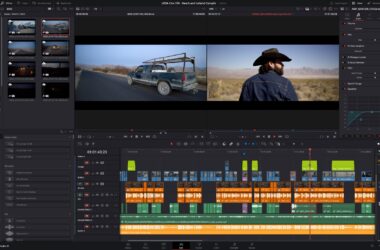
You lock the cut in Premiere, export an XML, hand it to color, and twenty minutes later the message comes back: half the timeline is black, the speed ramps are gone, and one nested sequence turned into a single mystery clip. Nobody did anything wrong. The interchange formats are just old, and they drop things, and they have dropped the same things for a decade.
Here’s the short version: the Premiere-to-Resolve roundtrip in 2026 works the same way it did five years ago. You export XML, AAF, or EDL from Premiere, you conform in Resolve, and you either grade and come back or you finish there. What breaks is completely predictable, which means you can prep for it before you export instead of discovering it during the conform.
Last updated: August 2026. Written against DaVinci Resolve 21.0.3 and Adobe Premiere 26.3, both current as of this writing. Two things to know before we start: Adobe dropped the “Pro” from Premiere’s name with version 26 in January 2026 (plugin and script identifiers still say “Premiere Pro” under the hood, on purpose), and nearly every roundtrip guide you’ll find in a search predates Resolve 18. The mechanics they describe mostly still apply. The version facts don’t. No affiliate links in this one; it’s all workflow.
First question: should you roundtrip at all?
The verdict up front. If your project is going to a colorist, you roundtrip, and the destination is Resolve. That’s where colorists live, that’s where the control surfaces plug in, and nothing in 2026 changed it. If you’re a solo editor grading your own work, the question got more interesting this year, because Premiere now has a real in-app color environment: Color Mode, announced at NAB in April. We compared it against Lumetri and Resolve in depth in our Color Mode breakdown, and the one-line summary is that it’s promising and you should not use it for client work yet. It only exists in the Premiere beta app, Adobe calls beta projects potentially disposable, it can’t import LUTs, it has no HSL keying, and opening a Color Mode project in shipping Premiere throws offline-filter warnings. A one-way door with a “beta” sticker on it.
So for now the calculus holds: serious grading means Resolve, and getting a Premiere timeline into Resolve means the roundtrip. One hardware note before you commit a machine to the job: Resolve 21 dropped Intel Mac support entirely. It wants Apple Silicon and macOS 15 or newer on the Mac side, so if your conform bay is a 2019 Intel tower, it’s capped at Resolve 20. Everything new in 21 that matters to editors is in our Resolve 21 guide.
“Can’t Resolve just open my .prproj by now?”
No. Still no. This is worth stating plainly because Resolve has shipped three major versions since most roundtrip articles were written, and it’s reasonable to assume somebody fixed this. Nobody did. Resolve 21 does not open Premiere project files, Premiere 26 has no “send to Resolve” button, and the official interchange remains the same three formats: Final Cut Pro XML, AAF, and EDL, all living under File > Export in Premiere. (A third-party converter now exists that goes straight from .prproj to a native Resolve project, and it’s interesting enough to get its own section below.)
Prep the timeline before you export
Every miserable conform I’ve seen started with an unprepped timeline. Twenty minutes here saves the colorist an afternoon, and if the colorist is you, it saves your afternoon.
- Duplicate the sequence first. The prep is destructive. Work on a copy named something like v12_FOR_COLOR and leave the editorial master alone.
- Flatten your nests. Nested sequences are the number one conform casualty; they come through flattened, wrong, or as a single opaque clip. Copy the contents up into the parent timeline wherever you can.
- Strip third-party effects. Plugin effects don’t travel, and some of them corrupt the export outright. Remove them from the duplicate; they’ll come back on the return trip or get rebuilt in the grade.
- Simplify transitions. Cuts survive. Cross dissolves usually survive. Anything fancier won’t, and a transition the format can’t describe has a history of landing as a black gap. Note where your transitions live so someone can rebuild them.
- Check the frame rate twice. The 23.976-versus-24 mismatch is a recurring, current bug; Adobe’s forums have threads about it from this year. A timeline that’s off by 0.1 percent conforms fine for ten minutes and then drifts a frame. Confirm the sequence setting before export and confirm what Resolve reads on import.
- Pad your handles. If you’re media-managing a trimmed project for the colorist, include at least 24 frames of handle per clip. Retimes and transition rebuilds need material to grab.
- Send a reference render. Export a movie of the locked cut alongside the XML. It’s the only ground truth anyone has when the conform disagrees with itself.
XML, AAF, or EDL: what each one carries
Final Cut Pro XML is the default for picture, and the one you should reach for first. It carries your cuts, clip names, and basic transform data, and Resolve’s importer has been chewing on Premiere’s flavor of it for over a decade. It does not carry your Lumetri grades in any useful way, and its handling of anything beyond a cross dissolve is where most black-gap stories come from.
AAF is the audio-respecting option. It’s the format built for Avid-world interchange, and its distinguishing feature in this workflow is that it carries volume automation and track names where XML and EDL drop them. If your Premiere timeline has a real temp mix you want to reference in Resolve, AAF preserves the shape of it. (If your audio needs more than a reference pass, that’s a different job; our audio-in-post guide covers it.)
EDL is the crowbar. One video track, cuts and simple dissolves, nothing else. It sounds useless until a corrupted XML has eaten your whole morning, at which point a format too simple to break becomes attractive. EDLs conform by reel name and timecode, so they’re only as good as your source metadata; a card full of clips named C0001.MP4 with no reel names will conform wrong without complaint. That silent failure mode is the reason conform checks against a reference render exist.
What survives and what breaks
Element by element, so you know before you export rather than after.
Cuts, clip order, and timing: survive in all three formats. This part has been solid for years, frame-rate mismatches aside.
Transitions: cross dissolves usually make it through XML and AAF with their durations. Everything else (wipes, zooms, any plugin transition) does not, and a transition the importer can’t parse can take its neighboring in and out points down with it. The old-school fix still works: strip everything but dissolves before export, rebuild the rest in Resolve.
Speed ramps: the classic heartbreak. XML and AAF tend to flatten a keyframed ramp to a constant speed, which means the clip’s duration no longer matches the cut around it. Ironic timing, because Resolve 21’s retime tools are the best they’ve ever been (4-point bezier retime curves with ease handles), but the ramp has to be rebuilt there by hand, from your reference render. Budget time for it.
Nested sequences: flatten them before export, as covered in the prep list. One thing that got better this year: Resolve 21’s match frame now finds source media inside nested clips and multicams, which makes untangling a conform that does contain nests less painful than it was in 20. It speeds up the detective work; it still doesn’t make nests travel.
LUTs and grades: nothing color survives interchange. Not Lumetri, not a LUT dropped on an adjustment layer, nothing. That’s fine on the way in (the grade is the reason you’re going to Resolve), but remember it on the way back too. If a look must survive the trip, it travels as a LUT file or a still, handed off separately, or it gets baked into rendered media.
Audio: AAF carries volume automation and track names; XML carries less; EDL carries essentially nothing. If the temp mix matters, AAF or a rendered reference track.
Titles and graphics: plan on zero. Essential Graphics and Premiere titles are Premiere constructs. They stay behind, and finish-in-Resolve jobs rebuild them in Text+ or bring them in as rendered elements.
The conform in Resolve
In Resolve 21 the import lives at File > Import > Timeline. Point it at your XML or AAF, and pay attention to the import dialog instead of clicking through it: this is where you decide whether Resolve automatically brings in source clips from disk or links against media already sitting in your Media Pool, and it’s where you confirm the frame rate it detected matches the frame rate you exported. Say no to auto-import when you’ve already organized media in the pool; say yes when conforming on a machine that’s seeing this project cold.
Then verify before you grade a single node. Drop the reference render on a track above the conformed timeline and step through the cut, or difference-check it if you like scopes. Every conform error you find now costs a trim or a relink; every one you find after grading costs a regrade. Resolve 21 also added timeline comparison against backup snapshots, which is handy on long jobs where the conform gets revised mid-grade.
Relinking, and the traps that live there
Relinking works on file names, timecode, and clip properties, and with clean camera originals it’s boring in the best way. Three specific cases ruin that.
Variable frame rate footage. Phone clips and screen recordings often have no fixed frame rate, and a conform pipeline assumes one. Proxies and conformed timelines get a constant rate, the VFR original doesn’t have one, and the two drift, surfacing as broken relinks and audio slip. Adobe’s own guidance is to transcode VFR to a constant frame rate before it enters the workflow, and for roundtrip projects I’d treat that as mandatory at ingest, not optional. The full breakdown is in our proxy guide.
The free-Resolve decode gate. If the conform machine runs free Resolve, hardware H.264/H.265 decoding is switched off; it’s a Studio feature. A conform bay that plays camera originals fine in QuickTime and chokes in Resolve isn’t underpowered, it’s unlicensed. Resolve Studio is $295, one time.
Proxies during the grade. If the edit ran on proxies, remember that the grade doesn’t care: effects, noise reduction, and Fusion work all render at timeline resolution no matter what’s feeding them, and a dynamic-linked comp re-renders at full cost regardless. Proxies fix decode, not processing, and a grade session is mostly processing.
Grade and return, or finish in Resolve?
Two ways home. The classic roundtrip renders graded clips out of Resolve’s Deliver page as individual files with a new XML, which you import back into Premiere and check against your master. It works, and it’s a second conform, with a second round of everything above. The alternative is not going home: finish in Resolve, rebuild titles in Text+, do the mix or import the AAF, and deliver from the Deliver page. Every handoff you skip is a class of errors you skip, which is why post houses that live in this workflow keep pushing more of the finish into Resolve.
My rule: if the return trip only exists so Premiere can render the final export, cut it out and deliver from Resolve. Go back to Premiere when there’s a real reason to be there, like motion graphics work that lives in After Effects and dynamic links, or a client review process built around Premiere sequences. And if you’re the solo-editor case from the top of this guide, keep an eye on Color Mode. When it goes GA with LUT support and the interop holes filled, the roundtrip stops being mandatory for self-graded SDR web work. It’s not there in July 2026, and the panel story matters too: colorist-grade control surfaces talk to Resolve, and Color Mode support for them is undetermined.
The .prproj shortcut: PR2XML
The one new option since the old guides were written. PR2XML is a third-party converter that reads a .prproj directly and writes a native Resolve .drp project, skipping XML and AAF entirely. The vendor’s claim list reads like it was written from this article’s what-breaks section: cross dissolves with durations, transform keyframes, speed ramps mapped to Resolve’s native retime, adjustment layers converted to Resolve adjustment clips, markers, track locks, audio volume automation, nested sequences arriving as compound clips, and Premiere titles converted to Text+. Those are the vendor’s claims from their own documentation, not our test results; we haven’t run it against a production timeline yet. The analysis pass is free, so it will show you what it found in your project before you pay, and a license is €75 one time. It needs Resolve 17 or newer on the receiving end, and media still relinks the normal way if you’re moving between machines.
Worth trying? If you roundtrip occasionally and your timelines are clean, the XML path is free and known. If you fight speed ramps and nests every single project, running the free analysis on your ugliest recent timeline costs you nothing and will tell you quickly whether the claims hold for your work. A comparable tool exists at relink.co (formerly CornerCut); we haven’t evaluated it.
Quick reference: pick your format
| Path | Carries | Drops | Best for |
|---|---|---|---|
| FCP XML | Cuts, clip names, basic transforms, cross dissolves | Grades/LUTs, speed ramps, nests, plugin effects, most audio mix data | The default picture conform |
| AAF | Cuts, volume automation, track names, cross dissolves | Grades/LUTs, speed ramps, nests, plugin effects | Timelines where the temp mix matters |
| EDL | Cuts and simple dissolves, one video track | Everything else | Fallback when XML/AAF are corrupted; reel-name conforms |
| .prproj converter (PR2XML) | Vendor claims: dissolves, transform keyframes, ramps, nests as compound clips, markers, titles as Text+ | Media still relinks normally; claims not yet verified by us | Frequent roundtrippers fighting ramps and nests |
In conclusion
The roundtrip didn’t get fixed in 2026, but it did get more interesting around the edges: Resolve 21 sharpened the conform tools, Premiere grew a beta color room that will eventually let some jobs skip the trip entirely, and a converter now exists that attacks the failure list directly. Until one of those changes the game, the discipline is the same as ever: prep the timeline, pick the format for what needs to survive, verify against a reference before you grade, and skip the return trip when Resolve can just deliver. This is the workflow that works for me and the colorists I hand off to; if your pipeline breaks somewhere I didn’t cover, leave a comment and I’ll dig into it.