
Somewhere around video twenty, every creator’s drive becomes a crime scene. A folder called NEW FINAL, a desktop full of screen recordings, three copies of the same intro music in three projects, and somewhere in there, the clip you need for today’s video. You know it exists. You shot it in March. That’s all you know.
We already publish a professional post-production folder structure, and it’s one of the most-read things on this site. It’s also built for client work: agencies, deliverables, sign-off masters, a structure that assumes a “2026_Nike_SummerSpot” kind of life. A channel is a different animal. You are the client, the projects never stop coming, and the thing that matters isn’t handoff, it’s being able to find and reuse your own material fifty videos from now. This guide is that system: one structure that carries footage from card to edit to archive, for a one-person operation.
Last updated: July 2026. A few links below are affiliate links; they cost you nothing extra and help keep the site running. Drive prices are shortage-volatile and verified as of July 16, 2026.
The scale of the problem, in numbers
A useful conversion to memorize: gigabytes per hour is roughly the bitrate in megabits times 0.45. A weekly creator shooting a 10-minute video at a 5-to-1 ratio generates one to two hours of raw footage per video. At 4K30 H.265 (100 Mb/s), that’s 45 to 90GB per video, which lands between 2.5 and 5TB per year of camera originals alone, before B-roll days, screen recordings, audio, project files, and exports. Shoot 4K60, or iPhone ProRes, and 10TB a year is a normal channel, not a big one. Whatever system you adopt has to survive that flow rate every week without you thinking about it, which is why the answer is structure plus habit, not software.
The structure: one channel root, numbered videos, one shared library
Here’s the whole system. Two folders at the root of your working drive:
VIDEOS holds one folder per video, named by episode number plus a slug: EP047_gh7-review, EP048_travel-kit. Inside each, the same five subfolders every time: 01_Footage, 02_Audio, 03_Graphics, 04_Project, 05_Exports. That’s it. Five, not twelve; a talking-head channel does not need a VFX pull folder, and every folder you add is a decision you’ll re-make weekly.
LIBRARY holds everything that outlives a single video: your intro and outro, music, sound effects, LUTs, brand graphics, title templates, and an Evergreen-Broll folder that becomes more valuable every month you feed it. This folder is the difference between a channel and a pile of projects. When the March clip you need lives in LIBRARY/Evergreen-Broll/workspace, you stop re-shooting things you already own.
Why episode numbers instead of dates on the folders? Because publish dates slip. The video you shot in March that went out in May sorts wrong forever under a date system, but EP047 is EP047 no matter when it ships, it matches your YouTube numbering, and it’s how you and your future editor will talk about the back catalog (“grab the desk shot from 47”). Dates still matter, but they live one level down, on the files.
Naming files so search works
Files get the date, the source, and a real word: 2026-07-16_A7IV_desk-setup-wide.mp4. Date first in YYYY-MM-DD so everything sorts chronologically inside a folder, camera or source second so multi-device shoots don’t interleave into chaos, and a description a search box can find. No spaces (hyphens and underscores never break in a URL, a terminal, or an NLE relink), no version numbers on footage, and versions on project files only: EP047_v03.prproj, never NEW FINAL.
The renaming itself is a batch job, not a chore: NameChanger on Mac and PowerRename (built into Microsoft PowerToys) on Windows are both free and both turn a card’s worth of C0847.MP4 into searchable names in about a minute. And the folder skeleton shouldn’t be hand-built either. Post Haste, free from Digital Rebellion, stamps out your entire EP-folder template with the number and slug filled in, one click per video. It’s been the quiet standard for this job for a decade.
The ingest habit
Footage enters the system exactly one way: cards offload into the video’s 01_Footage folder through verifying software, get renamed, and the card doesn’t get formatted until the copy is confirmed. The full ritual, including the verified-copy tools and the travel version, is its own guide: the offload and backup workflow. The rule that matters here is “one way in.” The moment footage starts entering through the desktop, or a Downloads folder, or “I’ll sort it later,” the system is decorative.
Finding things again: tags, bins, and when to pay for a media manager
Your NLE already does more of this than most people use. Premiere 26’s Media Intelligence indexes footage on-device and lets you search it in plain language, by what’s in the frame or in the transcript, and as of the current 26.3 it can even search by sound. Resolve 20 and 21 build Smart Bins off any metadata field plus face and audio classification. Final Cut’s Keyword Collections remain the gold standard for manual logging. For a single channel, the workflow that holds up is: structure and naming do the finding, the NLE’s search does the rest, and you tag nothing by hand except your evergreen B-roll as it goes into the LIBRARY.
Two tools earn a mention beyond that. Adobe Bridge is still completely free (no Creative Cloud subscription required) and is a perfectly good visual browser for scrubbing a footage folder before import. Eagle ($34.95 one-time) is a lovely visual library for the LIBRARY side of the system, with hover-scrub video previews that make an evergreen B-roll collection browsable. The power option is Kyno ($159), a proper media manager for reviewing, tagging, and transcoding footage without importing anything; it came back from a long post-acquisition hibernation with a solid 2025 release, though its release pace under the new owner is worth knowing about before you build a workflow on it. Start free. A solo channel usually doesn’t need the $159 tool until footage volume says so.
The archive leg: what happens when the video ships
When a video publishes, its folder moves off the working SSD and onto the archive drive, unchanged. Same structure, same names; the archive is just the VIDEOS folder with more patience. Once a quarter, sweep any B-roll worth keeping into the LIBRARY first. What you keep is a judgment call with a default: keep camera originals for anything evergreen or reusable, keep projects and exports for everything, and let the true junk (the fourth take of a sponsor read from 2024) go. Storage is not so cheap this year that “keep everything forever” is free advice.
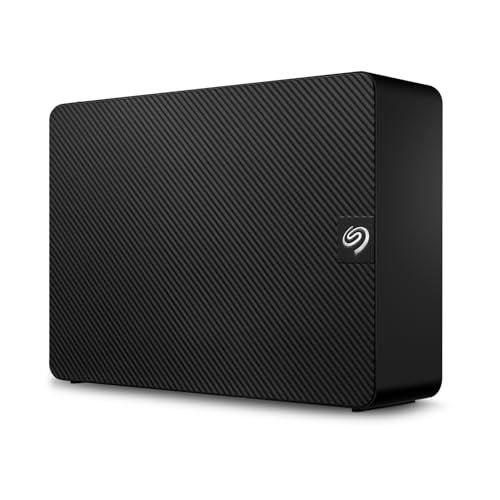
About that: the same AI buildout that ate the SSD market ate hard drives too. Prices are up roughly 50 percent since last fall, WD is effectively sold out through 2026, and $20 to $30 per terabyte is the new normal for what cost $12 in 2024. The practical advice is to buy your archive capacity now rather than when the current drive fills. A 16TB or 24TB Seagate Expansion holds years of a typical channel, and the 24TB is the better per-terabyte buy when it’s in stock at a sane price. Mirror it: FreeFileSync (free) syncs the archive to a second drive on a schedule, or Carbon Copy Cloner ($50, Mac) if you want snapshots and safety nets, and one of those two drives should live somewhere that isn’t your desk. If your setup has outgrown loose drives, a two-bay NAS like the Synology DS225+ is the next rung, and the archiving guide covers the whole ladder including cloud cold storage for the paranoid tier (in the good sense).
The whole system on one screen
| Leg | The habit | The tool |
|---|---|---|
| Ingest | Cards in through verified offload, renamed, one way in | OffShoot or Resolve Clone Tool, free renamers |
| Structure | EP-numbered video folders, five subfolders, shared LIBRARY | Post Haste (free) |
| Edit | Search beats tagging; tag only evergreen B-roll | Your NLE, Bridge (free), Eagle for the library |
| Archive | Ship it, sweep B-roll to LIBRARY, move folder to archive drive, mirror it | Big HDD twice, FreeFileSync or CCC |
FAQ
Should I organize by date or by video?
By video, with dates on the files inside. Everything you do (shoot, edit, publish, search, reuse) happens in units of videos, not calendar days. Date-first folders are the photographer’s habit, and it maps badly onto a channel where one video can span six shoot dates.
Do I need a NAS or a MAM?
Not at solo-channel scale, and be suspicious of anyone selling you one before structure and naming exist. The tools built for teams (Frame.io beyond review duty, Iconik, enterprise MAMs) solve coordination problems you don’t have. A NAS enters the picture when you add an editor, need to cut from two machines, or your archive outgrows loose drives; that’s a storage decision, and the NAS guides cover it.
Should I keep raw footage after a video publishes?
Keep it if it’s evergreen, reusable, or the video is one you might re-cut; let pure single-use material go once the video is safely out and archived. The middle ground that works for most channels: keep everything for six months, then keep selectively. And anything you find yourself reusing twice belongs in the LIBRARY, not in an old episode folder.
When do I graduate to the pro structure?
The moment someone pays you to make their video instead of yours. Client work needs deliverables, sign-off masters, and handoff hygiene this system deliberately skips. That’s what the professional folder structure is for, and the two systems live happily on one drive: VIDEOS for the channel, a Clients root next to it running the pro template.
And that’s it
Two root folders, episode numbers, dates on files, one way in, and a quarterly sweep to the archive. Set it up once with Post Haste and the system mostly runs itself, which is the only kind of system a person who also shoots, edits, and publishes will keep. This is what works for me and the solo operations I’ve helped untangle; if your channel has a wrinkle this doesn’t cover, leave a comment and I’ll tell you what I’d do.