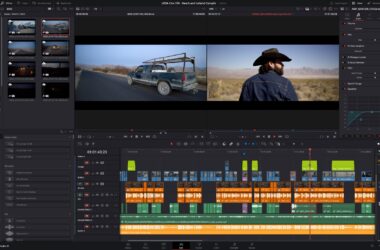

Ask the internet about choppy playback and you’ll get one answer: make proxies. Every tutorial agrees, and most of them add some version of “apart from the time and disk space, there’s no downside.” Then you spend an evening generating proxies, open the project, and the timeline still stutters, because the thing that was slow was never the thing proxies fix.
Proxies solve exactly one problem: expensive decoding. They are lightweight stand-in files that are cheap to decompress. When your playback problem is decode-bound, they’re magic. When it’s your GPU, your storage, or a Fusion comp, they do approximately nothing, and knowing which situation you’re in before you burn the evening is the entire game. This guide is the diagnostic.
Last updated: July 2026. Written against DaVinci Resolve 21 and Adobe Premiere 26.3, both current as of this writing. A couple of links below are affiliate links; they cost you nothing extra and help keep the site running.
Why your footage is hard to play in the first place
Cameras compress video with long-GOP codecs (H.264 and H.265) because they’re spectacularly efficient for storage: most frames aren’t stored as pictures at all, just as differences from neighboring frames. That’s great until an editor asks for frame 847 and the decoder has to reconstruct a whole chain of frames to build it. Play forward and it’s manageable. Scrub, step backward, or stack a multicam, and the decode cost explodes. Intraframe codecs (ProRes, DNxHR, BRAW) store every frame complete, which is why a 700 Mb/s ProRes file often plays smoother than a 100 Mb/s H.265 file. The bitrate isn’t the burden. The reconstruction is.
Modern chips attack this with dedicated decode hardware, and whether your machine has the right block for your specific flavor of footage is the single most important fact in this whole topic. The dividing line is 10-bit 4:2:2, which is what most mirrorless cameras shoot in their good modes. Intel iGPUs have decoded HEVC 4:2:2 in hardware since 2019. Apple Silicon media engines handle it across the M lineup. NVIDIA cards, up to and including the RTX 40 series, decode plenty of formats but not 4:2:2 at all; the RTX 50 series finally added it, and Puget Systems measured long-GOP timeline performance jumping 77 percent over the 30 series when it landed. If your machine can hardware-decode your codec, your “underpowered” computer may play native footage fine. If it can’t, the decode falls on CPU brute force, and no amount of cores makes scrubbing H.265 pleasant.
One more wrinkle that catches Resolve users specifically: in the free version of Resolve, hardware decoding of H.264 and H.265 is switched off. That’s a Studio feature. If your camera footage crawls in free Resolve on a machine that plays the same files fine in QuickTime, you don’t have a hardware problem, you have a $295 license question, and it’s the cheapest “upgrade” in this article.
The diagnostic: what is slow?
Before generating anything, spend five minutes finding the bottleneck. The tells are reliable.
It’s decode-bound if: untouched clips stutter on a plain timeline, scrubbing feels like wading through glue, reverse playback is hopeless, and your CPU pegs while the GPU naps. The heavier your camera codec (10-bit 4:2:2 H.265 being the classic), the more likely this is your problem. Proxies fix this, completely.
It’s processing-bound if: raw clips play fine and things only fall apart where you’ve stacked grades, noise reduction, stabilization, or effects. Watch playback FPS as you toggle effects off; if it recovers, the GPU is your ceiling. Proxies won’t help, because effects compute at timeline resolution no matter how small the source file is. Your levers are render cache, timeline proxy resolution (a different feature with a confusingly similar name), render-in-place, or better hardware. Neat Video’s own performance guidance says heavy temporal noise reduction may never play back in real time regardless of optimization, which is worth hearing from the people who wrote the plugin.
It’s storage-bound if: one stream plays fine but multicam or stacked angles stutter while both CPU and GPU sit idle. The math is unforgiving: one stream of UHD ProRes HQ needs about 110 MB/s, so four angles need about 440, which is dead over gigabit Ethernet and fine over 10GbE or local NVMe. If this is you, proxies are a legitimate workaround (smaller files, smaller bandwidth), but fixing the pipe fixes it without generation time; our NAS guide and the 10GbE guide cover that path.
When proxies are the right answer
Decode-bound editing is proxies’ home turf, and a few situations are essentially automatic yeses. Cutting 10-bit 4:2:2 long-GOP on any machine without the right decode block (that’s every NVIDIA-only Windows box below the 50 series, and plenty of older Intel machines). Multicam of any codec, because four streams of anything is four times the decode. Editing on a laptop you love that’s three years past its prime; a quarter-resolution ProRes proxy plays on nearly anything with a fan, and our laptop guide exists for when even that stops being true. Remote and cloud workflows, where a 10 Mb/s H.264 proxy uploads in minutes and camera originals don’t. And any project where you’ll hand the edit to someone whose hardware you can’t control.
There’s also a camera-side version of this decision: the codec you choose at record time is a decision about how much decoding your edit bay will do for the life of the project. We wrote about that tradeoff in the edit-ready camera guide; if you’re buying a camera and dreading proxies, buy the camera whose files you can cut native.
When proxies won’t save you
The list nobody publishes. Each of these looks like a proxy problem and isn’t.
Effects, grades, and noise reduction. Covered above, but it’s the number one disappointment so it bears repeating: the GPU renders your node tree at timeline resolution whether the source is an 8K original or a quarter-res proxy. Cache the heavy sections instead.
Fusion comps and After Effects dynamic links. A composition is its own render pipeline. Your proxy feeds it a lighter input, and then the comp renders every particle and tracker at full cost anyway. Resolve’s answer is caching Fusion output; Premiere’s is render-and-replace on linked comps.
Variable frame rate footage. Phone clips and screen recordings often have no fixed frame rate, and proxy generation can’t invent one: the proxy gets a constant rate, the original doesn’t have one, and the two drift out of sync, which surfaces as broken relinks and audio slip. Adobe’s own guidance is to transcode VFR to a constant frame rate first, then proxy. If your projects eat a lot of phone footage, that transcode step is not optional.
The relink traps. Proxies attach to originals by timecode, name, and audio configuration, and each is a place to get hurt. Premiere’s H.264 proxy presets carry a hard two-audio-channel limit, so a four-channel source won’t attach, which is the single most common “why won’t my proxy connect” ticket; use ProRes or DNx presets for multichannel sources. Identically named proxies sitting in the same folder as originals confuse auto-association. And a proxy made without matching timecode is a future conform problem wearing a helpful costume.
The generation tax itself. Making proxies requires decoding every frame of the source once, on exactly the machine that’s bad at decoding it. Real number: about seven angles times ninety minutes of multicam took an hour and forty minutes to proxy on a recent Mac Studio. On a CPU-decode-only box, budget realtime or worse. Resolve 21 added true background proxy generation, which moves the pain off your timeline but doesn’t make it free. For a one-day turnaround, the generation window can cost more than it saves, and cutting native with a half-resolution timeline setting is the better trade.
Doing proxies right, per NLE, in 2026
Resolve 21 has three separate systems people conflate. Proxy media: real portable files, living in a Proxy subfolder next to your originals, auto-linked even if something else generated them, toggled under Playback, Proxy Handling. Optimized media: Resolve-internal cache files, not portable, machine-local convenience only. Render cache: pre-renders of heavy timeline sections, which is the tool for the processing-bound problems above. Use proxy media for anything collaborative or long-lived, and note that 21 generates proxies in the background while you keep cutting. Studio users also get the standalone Blackmagic Proxy Generator app, which watches folders and builds proxies automatically as cards land (the free version includes a Lite build with fewer codecs).
Premiere 26 kept the mechanics that have worked for years (Ingest settings or right-click, Create Proxies, toggle button in the Program Monitor) and reduced the need: Adobe’s 26 release claims H.264 playback up to four times faster on Apple Silicon and twice as fast on Windows, so cut native for a day before assuming you need proxies at all. The three Premiere-specific rules: name proxies with the _Proxy suffix and keep them out of the originals’ folder, use ProRes or DNx presets for anything with more than two audio channels, and in Productions, make proxies before sequencing footage into other projects.
Final Cut Pro 11 keeps it simplest: optimized media (full-res ProRes) or proxy media at 12.5 to 100 percent of frame size. The one behavior worth memorizing is the priority rule: FCP always prefers optimized files when they exist, and never uses proxies unless you explicitly switch the viewer to proxy playback. If you made proxies and nothing got faster, check the viewer menu, not your proxies.
Which proxy format and size
| Format | Bitrate (1080p) | Per hour | Use it when |
|---|---|---|---|
| ProRes 422 Proxy | ~40 Mb/s | ~17 GB | The default. Macs, mixed shops, anything local |
| DNxHR LB | ~43 Mb/s | ~19 GB | Windows and Avid-adjacent pipelines; same idea as ProRes Proxy |
| H.264 (10 Mb/s) | 10 Mb/s | ~4.5 GB | Cloud and remote only. Reintroduces long-GOP scrubbing cost locally |
The lever that matters more than codec is resolution. A proxy at half resolution of a UHD project is 1080p, decodes fast, and still looks fine on a laptop screen; quarter resolution is the move for 6K and 8K sources or older machines. Match the source timecode and audio channel count, always. If you want proxies generated outside the NLE, Shutter Encoder (free, current, and built on FFmpeg) handles batches to ProRes and DNx on every OS, and EditReady ($99, Mac) is the fast GPU-accelerated version with camera RAW support and proper metadata passthrough.
When the answer is hardware, not proxies
If every project starts with a generation tax because your machine can’t decode your camera’s codec, at some point the tax exceeds the price of not paying it. The fix is targeted, not top-shelf: what you need is the decode block, not maximum GPU. Any Apple Silicon Mac handles HEVC 4:2:2 in hardware. On the PC side, a modern Intel CPU with its iGPU enabled has been the budget decode answer since 2019, and the RTX 50 series made NVIDIA-only builds finally viable for mirrorless footage. Resolve users on free should price the Studio license before any silicon. The full buying logic lives in our laptop and GPU guides; the diagnostic above tells you whether you’re shopping for decode, GPU compute, or bandwidth. If the NLE itself is still an open question, the editing software comparison settles that first.
FAQ
Do proxies reduce final export quality?
No. The NLE relinks to camera originals at render time; proxies are for playback only. The exception is exporting with the proxy toggle still enabled in a way that renders from proxies, which every NLE warns about and someone does anyway every week.
Proxy media or optimized media in Resolve?
Proxy media, almost always. It’s portable, shareable, survives moving the project between machines, and other tools can generate it. Optimized media is a single-machine cache with unreadable filenames. It’s fine as a quick fix and a liability as a workflow.
Why is my timeline still slow with proxies on?
Because the bottleneck isn’t decode. Toggle your effects off and watch the playback FPS: if it recovers, you’re GPU-bound and you want render cache or timeline proxy resolution. If multicam specifically struggles, check storage throughput. And in FCP, check that the viewer is set to proxy playback.
Half or quarter resolution?
Half for UHD sources on decent machines (your proxy is 1080p). Quarter for 6K and 8K sources, old laptops, or huge multicams. The proxy only has to be good enough to make cutting decisions on; nobody grades on proxies.
The short version
Find the bottleneck first. Decode-bound: proxies, generated in the background, ProRes Proxy at half res, timecode matched. Processing-bound: cache, don’t proxy. Storage-bound: fix the pipe or use proxies as a bandage knowingly. VFR: transcode first. And if the same machine fails the same diagnosis on every project, the answer stopped being proxies a while ago. What you do with all the space proxies save you is a different problem, and the media management guide picks it up from here. Questions about a setup that stutters in a way I didn’t cover? Leave a comment.