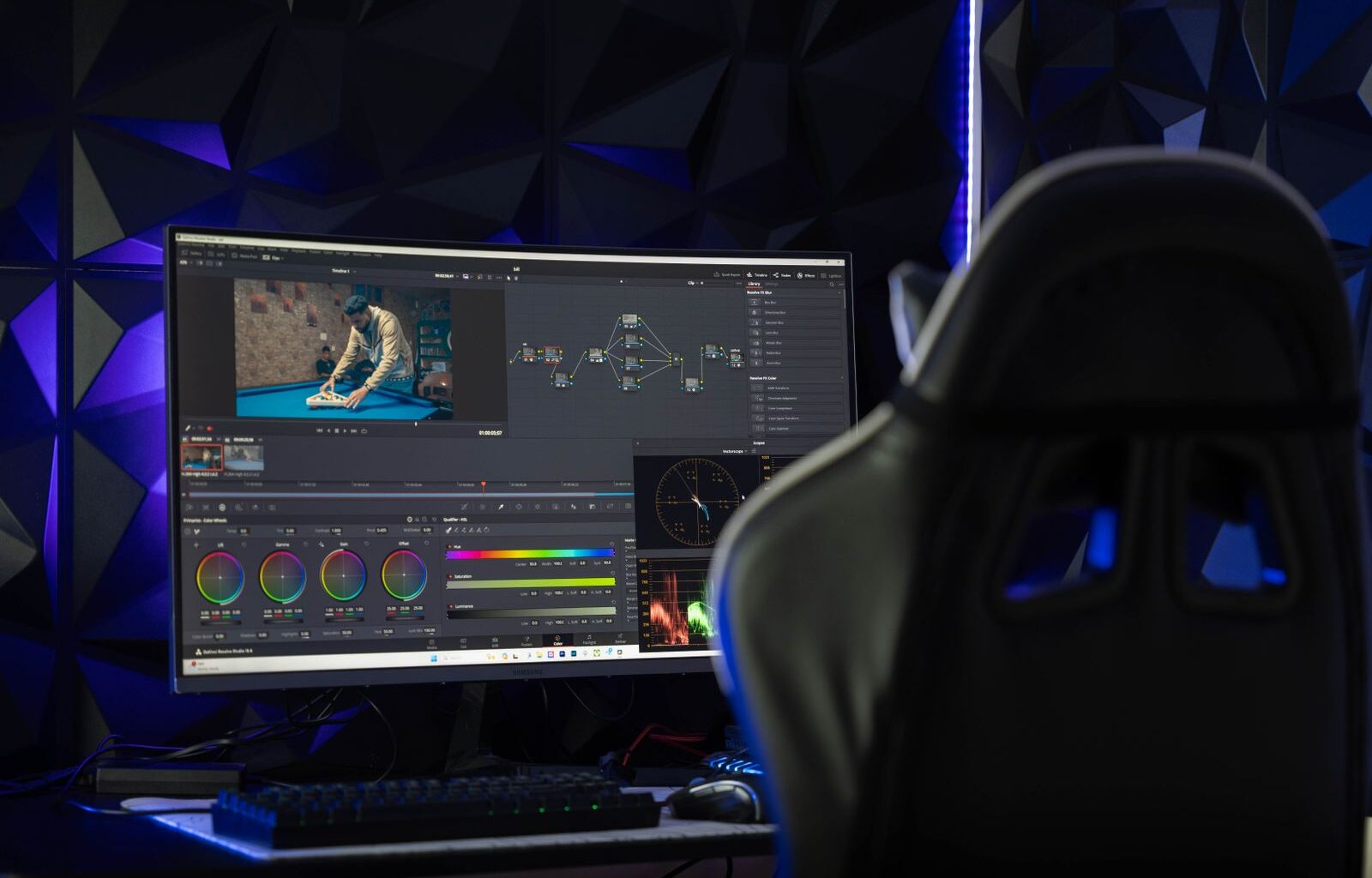

So you’ve got the machine, you’ve got the drives, and you’re cutting on the same monitor you bought for spreadsheets in 2019. The timeline is cramped, the scopes live on a second tab, and every color decision you make is a guess because the panel drifts toward green. Been there. The monitor you edit on is the thing you look at for eight hours a day, and most editors spend less on it than on a lens they use twice a year. Let’s change that.
One thing to get straight first, because it decides half the picks: this guide is about the monitor you cut on. Timeline, bins, inspector, scopes, the UI. It is not about the reference monitor you grade on, which is a different animal with a different price tag, and I wrote that one up separately in the best monitor for color grading. A good editing monitor needs to be sharp enough to read a timeline all day, accurate enough that what you see is roughly what your client sees, and wired so a laptop editor can plug in one cable and be at work. Those three things, in that order, sort the whole market.
Last updated: September 2026. Some links below are affiliate links. Buy through them and it helps keep the site running, at no extra cost to you. Every price here was read on the live Amazon listing on September 2, 2026, and every pick had a proper buy box that day. Monitor prices swing by a hundred dollars month to month, so check before you buy.
TLDR
If you just want the answer: the monitor on my desk is the ASUS ROG Strix OLED XG27UCDMG, a 27-inch 4K QD-OLED at $861.99, and after months of daily editing on it I’d buy it again tomorrow. If you don’t want an OLED, and there are fair reasons not to, the Dell UltraSharp U2725QE at $626.49 is the best IPS editing monitor for most people, and its 32-inch twin, the U3225QE, is $819.99. Budget is the ASUS ProArt PA279CRV at $399. Mac people who want 5K should look at the ProArt PA27JCV at $699 before they look at Apple.
The picks
The one I use: ASUS ROG Strix OLED XG27UCDMG ($861.99)
Don’t call me a fanboy, but I run a gaming monitor. The XG27UCDMG is a 27-inch 4K tandem QD-OLED that refreshes at 240Hz, covers 99% of DCI-P3, does true 10-bit color, and carries a DisplayHDR 400 badge, and it has been my daily editing monitor for months now. The pitch is contrast. OLED blacks are black, so a dark scene on the timeline looks like the dark scene instead of a grey rectangle, and the 4K panel at 27 inches is dense enough that Resolve’s tiny UI text is crisp without scaling games. The 240Hz part sounds like a gamer thing until you scrub a timeline on it, and then 60Hz feels like it’s underwater.
Now the objections, because I had all of them before I bought it. Burn-in: months of an eight-hour-a-day static Resolve interface and there is none, and the panel’s OLED Care routines run pixel refreshes on their own without me thinking about it. Auto brightness limiting, where an OLED dims when a big white window comes up: it hasn’t been an issue in practice, and I keep the SDR brightness where an editing suite should be anyway, which is not blinding. Text: fine. Older QD-OLEDs fringed small text, and this generation doesn’t do it in a way I can see at a normal desk distance. What you give up is a factory calibration report and the dock features the pro monitors build in, Thunderbolt charging and a KVM, because none of that ships on a gaming panel. And I want to be clear about what it is not. It is my editing monitor, not my grading monitor. For the final color pass the PA32UCDM with hardware calibration is still the OLED I’d trust, and that story lives in the grading guide.

Best IPS for most editors: Dell UltraSharp U2725QE ($626.49)
If OLED makes you nervous, or your laptop is your workstation, this is the monitor. The U2725QE is a 27-inch 4K IPS Black panel, which means about triple the contrast of a normal IPS, running at 120Hz with 99% DCI-P3 and a factory calibration report in the box. The part laptop editors should read twice: it has a Thunderbolt 4 input with 140 watts of power delivery, an Ethernet jack, a stack of USB ports, and a built-in KVM. One cable runs a 16-inch MacBook Pro or a ProArt P16 at full charge, and the monitor becomes the dock you were about to spend $300 on. Nothing else at this price stacks IPS Black, 120Hz, a cal report, and 140W.
Downsides are small. It’s an IPS, so blacks are dark grey next to the OLED, and the HDR is the on-paper kind. Dell’s stand is excellent and its on-screen menu is not. And if you buy it, buy it from Amazon, where it was $626.49 with a proper buy box on September 2; Dell’s own store has no affiliate program, so it isn’t linked here.

Best 32-inch IPS: Dell UltraSharp U3225QE ($819.99)
Same board, bigger glass. The U3225QE takes everything the 27 does, the IPS Black panel, 120Hz, Thunderbolt 4 with 140W, KVM, and stretches it to 32 inches for about $200 more. At 32 inches 4K sits at a comfortable 138 pixels per inch, so you can run the UI at 100% scaling and see the whole Resolve Color page with room to breathe, which is the real reason to go big. It shipped from Amazon itself at $819.99 when I checked. If your desk has the depth for it, this is the one I’d point most Resolve editors at, and it’s a better buy than any of the 4K 60Hz “pro” monitors that cost the same.

Best budget: ASUS ProArt PA279CRV ($399)
The PA279CRV is the only monitor under $450 that ships with a real calibration report, and that’s the whole reason it’s here. 27 inches, 4K, 99% DCI-P3 and 99% Adobe RGB, Calman Verified out of the box, and USB-C with 96 watts of power so a laptop still gets one-cable life. It’s 60Hz, the panel is a standard IPS with standard IPS contrast, and the stand is plastic. For a first real editing monitor, or a second seat in a small shop, it’s an absolute steal at $399. It was in stock with a buy box on September 2, which has not always been true for this listing, so if it flips to a third-party seller at $500, the BenQ PD2706U at $399.99 is the fallback: 95% P3, a KVM, and BenQ’s puck controller, with a slightly narrower gamut.

Best 5K for Mac editors: ASUS ProArt PA27JCV ($699)
Mac editors want 5K at 27 inches because that’s the 218 pixels per inch macOS was drawn for: UI text renders at exactly 2x with no fractional scaling and no softness. Apple’s own answer is the Studio Display at $1,503.76 on Amazon the day I checked, for a panel that hasn’t changed in years. The PA27JCV is the same 5K resolution with a Calman-verified factory calibration, 99% DCI-P3, and USB-C at 96 watts, for $699. Less than half the money. What you lose against the Apple: the stand wobbles, the matte coating has a little grain, there’s no Thunderbolt (USB-C DisplayPort only, which is fine for one display), and the speakers are a formality. What you keep is the thing that matters, the pixel density, and $800.

Best 6K and the pro pick: LG UltraFine 32U990A-S ($1,099.99)
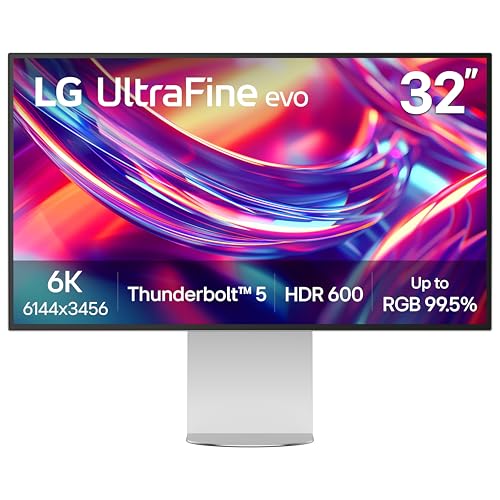
The 32U990A-S is a 32-inch 6K (6144 by 3456) Nano IPS Black panel with Thunderbolt 5, and at $1,099.99 on Amazon it costs a fraction of the Studio Display XDR it’s obviously aimed at. 6K at 32 inches is the same 218 ppi Mac density as a 5K 27, so this is the “Mac 5K, but 32 inches” answer, and the Thunderbolt 5 input with 96 watts is future-proof for the next MacBook Pro. It’s 60Hz, the on-screen menu is clunky, and the HDR 600 rating is real but not a grading spec. If you cut long-form on a Mac Studio and want one big sharp screen, this is where the money goes. And yes, that’s an Amazon price well under LG’s $1,999 list, so read it as a September number, not a forever number.
The 32-inch OLED: ASUS ROG Swift OLED PG32UCDM ($1,181.22)
Everything I said about my 27 applies to its bigger sibling. The PG32UCDM is a 32-inch 4K 240Hz QD-OLED with the same OLED Care set, and at 32 inches you get the 100%-scaling Resolve layout with OLED blacks. It was $1,181.22 with a buy box on September 2. The pixel density drops to 138 ppi, so text is a touch less razor than the 27, and a 32-inch OLED at full white pulls the brightness limiter harder than a 27 does, which is the one place I’d expect an editor to notice ABL. ASUS also sells a newer tandem-panel revision, the PG32UCDM3, at $1,299 if you want the same generation of panel my 27 has. Either way, it’s the gaming-priced route to a big OLED timeline monitor, and it’s about $400 under the PA32UCDM that adds the calibration hardware.

The ultrawide: Dell UltraSharp U4025QW ($1,549)
If you want one screen instead of two, the U4025QW is the one. It’s a 40-inch 5120 by 2160 IPS Black panel, which is a 4K monitor with an extra third of a screen bolted onto the side, at 120Hz, with the same Thunderbolt 4 140W dock and KVM as the smaller UltraSharps. A full-length timeline with the viewer and scopes side by side is a real thing on this monitor, and the curve is gentle enough that straight lines still look straight. It shipped from Amazon at $1,549. Whether you should want one screen instead of two is the next section.

Side by side
| Monitor | Size / res | Panel | Refresh | Gamut / cal report | Laptop cable | KVM | Amazon, Sept 2 |
|---|---|---|---|---|---|---|---|
| ASUS XG27UCDMG | 27″ 4K | Tandem QD-OLED | 240Hz | 99% P3 / no report | Not a dock | No | $861.99 |
| Dell U2725QE | 27″ 4K | IPS Black | 120Hz | 99% P3 / yes | TB4, 140W | Yes | $626.49 |
| Dell U3225QE | 32″ 4K | IPS Black | 120Hz | 98% P3 / yes | TB4, 140W | Yes | $819.99 |
| ASUS PA279CRV | 27″ 4K | IPS | 60Hz | 99% P3 / yes | USB-C, 96W | No | $399.00 |
| ASUS PA27JCV | 27″ 5K | IPS | 60Hz | 99% P3 / yes | USB-C, 96W | Auto | $699.00 |
| LG 32U990A-S | 32″ 6K | Nano IPS Black | 60Hz | Wide gamut (P3) / not stated | TB5, 96W | Not stated | $1,099.99 |
| ASUS PG32UCDM | 32″ 4K | QD-OLED | 240Hz | 99% P3 / no report | Not a dock | No | $1,181.22 |
| Dell U4025QW | 40″ 5K2K | IPS Black | 120Hz | 99% P3 / yes | TB4, 140W | Yes | $1,549.00 |
Ultrawide or two monitors?
“Should I just get one giant ultrawide?” It depends on your NLE more than your desk. An ultrawide gives you an uninterrupted timeline with no bezel down the middle, and on the Resolve Color page it puts nodes, scopes, and viewer side by side without anything shrinking. Two monitors give you something an ultrawide can’t: a separate display. Resolve’s dual-screen layout is a literal two-monitor feature, and a clean full-screen viewer on the second display is how a lot of us check a cut. That second display can also be the reference monitor from the grading guide, or the TV from the TV as a client monitor piece, which means the two-screen setup grows into a real suite and the ultrawide doesn’t.
So my rule. Resolve-first editors, and anyone who grades their own work: buy the 27 or 32 you like from the list above and add a second display later. Premiere and Final Cut editors on one machine who live on the timeline: the U4025QW is the best single screen you can put on a desk. And skip the cheap 34-inch 1440p ultrawides for editing. They’re wide, not tall, and a 27-inch 4K plus your laptop screen beats them for less money.
OLED for editing, from someone who runs one
I used to tell people that a static NLE interface on an OLED was a burn-in bet you shouldn’t take, and the grading guide still says something like that. Months of daily use on the XG27UCDMG changed my mind for this generation of panel: the OLED Care routines do their job, the interface I stare at all day hasn’t left a ghost, and the contrast makes every other monitor on my desk look flat. So OLED for editing is a yes from me, with two conditions.
Condition one: buy a current-generation panel with real care features, not a bargain. The sub-$500 27-inch OLEDs from AOC and MSI are gaming panels from an older generation with weaker brightness limiting, and they’re the ones the burn-in horror stories come from. Condition two: keep the OLED as your editing monitor, not your reference. Nothing on a ROG panel is hardware-calibratable, so for the final grade you still want the PA32UCDM, which is the OLED that takes a probe, at $1,599, or an IPS reference from the grading guide, and a calibration pass from the calibration article. Cut on the OLED, grade on the calibrated one.
What matters in an editing monitor (and what doesn’t)
Pixel density before size. 4K at 27 inches (163 ppi) or 32 inches (138 ppi) is the floor for reading a timeline all day; 5K at 27 or 6K at 32 (218 ppi) is the Mac-native sweet spot. A 32-inch 1440p monitor is a big blurry spreadsheet.
P3 coverage and a calibration report. 95% DCI-P3 or better is table stakes now. The report in the box matters more than the gamut number, because it tells you the panel left the factory close to right; the ProArts and UltraSharps ship one, the gaming panels don’t.
Contrast. IPS Black roughly triples the contrast of a normal IPS, OLED makes it effectively infinite, and standard IPS is what you’ve been putting up with. For an editing monitor this is the spec that changes how footage looks on the timeline more than any other.
Power delivery wattage, if you edit on a laptop. 65W is a MacBook Air. 96W runs a 14-inch MacBook Pro. A 16-inch Pro or a gaming-class PC laptop under render load wants 140W, which today means the Dell UltraSharps. Check the number before you assume “USB-C” means one cable.
Refresh rate is a real thing now. 120Hz makes scrubbing and dragging clips feel immediate. 60Hz is fine, and it’s what every 5K and 6K panel here runs. 240Hz is a gaming spec that happens to be lovely.
What doesn’t matter: HDR badges under 1000 nits (none of these are grading HDR), built-in speakers (get real monitors), and anything the box says about response time.
FAQ
Is a 4K monitor necessary for video editing?
For the timeline, yes, at 27 inches and up. You don’t need 4K to see 4K footage; you need it so the interface is sharp enough to read for eight hours. 1440p at 27 inches is a compromise, and 1080p is a headache.
Is an OLED monitor good for video editing?
A current one with real panel-care features is, and I edit on one every day. Keep the brightness sane, let the care cycles run, and grade on a calibrated display, not the OLED.
27 or 32 inches?
27 at 4K is sharper (163 ppi) and fits any desk; 32 at 4K runs the UI at 100% with the whole Color page visible. Sit closer than arm’s length and 27 wins; sit back and 32 wins.
Do I need Thunderbolt on the monitor?
Only if a laptop is your workstation, and then it’s the best feature on the list: one cable for video, charging, Ethernet, and USB. Desktop editors can ignore it and save the money.
Can I grade on my editing monitor?
You can make decisions on it; you shouldn’t sign off on it. A calibrated reference display is the answer, and if that’s out of budget, a calibrated TV over a Blackmagic I/O box is the next best thing. Both are written up in the grading guides linked above.
In conclusion
What would I choose? Well, I already did: the XG27UCDMG is on my desk and it’s staying there. If you want the safe, dockable, calibrated answer, the U2725QE or its 32-inch twin is the monitor most editors should buy, and the PA279CRV gets you 90% of that for $399. Whatever you pick, spend the leftover on a calibration probe and a second screen before you spend it on a bigger first one.
And that’s it! As always, what you see here is what works for me, my clients, and my crew. Your desk, your eyes, and your NLE might move the needle. The companion guides for the rest of the desk: the best keyboard for video editing, the best mouse, and the best Thunderbolt dock if your monitor doesn’t double as one. Questions about a specific setup? Leave a comment.