


A photo-editing laptop is a display with a computer attached. The panel decides whether the color you grade in a hotel room is the color the client sees, and it’s the one part you can’t upgrade later. The RAM, the GPU and the card slot all sit behind that decision.
The budget trap runs the opposite way from video, and I say that as someone who spends most of the week on the video side. Lightroom Classic and Capture One are CPU and memory programs for most of the day; the GPU does real work in Denoise, Lens Blur and the generative tools, and almost nowhere else. So the money goes into the screen, into 32GB of memory, and into a slot that takes the card straight out of the camera, and the graphics card comes last.
Six picks, tiered by budget: three Macs and three Windows machines, the same class of hardware I ranked for the timeline in the video guide, read here for the raw file instead. Every price is what the retailer showed me on October 26, 2026. Four of the six are Best Buy listings, because the Windows configurations worth recommending for color work are stocked there first-party.
Last updated: November 2026. Some links below are affiliate links. Buy through them and it helps keep the site running, at no extra cost to you.
TLDR
The MacBook Pro 14 (M5 Pro) is the one to buy for photo editing. The 14.2-inch Liquid Retina XDR panel is factory calibrated to P3, the full-size SDXC slot takes the card straight out of the camera, and 24GB of unified memory covers Lightroom’s AI tools without a discrete GPU. It’s $2,478.00 at Amazon with 1TB of storage. The value pick is the Lenovo Yoga Pro 7i Aura Edition at $2,199.99 at Best Buy: a 15.3-inch 3K OLED, 32GB of RAM and an RTX 5060 that meets Adobe’s 8GB requirement for Denoise. Under $1,200, the MacBook Air 13 (M5) at $1,149.00 runs a Lightroom catalogue on 16GB and gives up only the card slot and the XDR panel.
This is the photo half of a pair. The video half, where I rank the same class of laptop by GPU and codec work instead of by panel, is my guide to the best laptop for video editing.
The picks
Best overall: Apple MacBook Pro 14 (M5 Pro)
Factory calibration decides this one. Apple calibrates every Liquid Retina XDR panel to the P3 gamut before it ships, and the 14.2-inch screen runs 3024 by 1964 pixels at 254 pixels per inch with 1000 nits of SDR brightness. That’s a reference-class display in a laptop lid, and you don’t load a profile before the first edit. I run Macs all day, and the XDR panel is the reason the MacBook Pro holds the top slot in both halves of this pair. The configuration I’m pricing is the M5 Pro with a 15-core CPU and 16-core GPU, 24GB of unified memory and a 1TB SSD: the MacBook Pro 14 (M5 Pro) is $2,478.00 at Amazon.
The SDXC slot is the second reason: the card goes from the camera into the laptop, and there’s no reader to forget in the bag. Adobe wants 16GB of shared memory for Denoise, Lens Blur and Reflection Removal on Apple silicon, and 24GB clears that with room left for the catalogue. Apple rates the battery at up to 24 hours of video playback. The limit is the 14.2-inch canvas: if you retouch at 100 percent all day with panels open, you’ll want the 16-inch model next. The cheaper step is the MacBook Air 13 (M5) at $1,149.00, further down, which loses the slot and the XDR panel.

Best for retouching at size: Apple MacBook Pro 16 (M5 Pro)
16.2 inches and 3456 by 2234 pixels. The MacBook Pro 16 (M5 Pro) has the same XDR panel, the same factory P3 calibration and the same 254 pixels per inch as the 14, with about 30 percent more screen area for the canvas and the panels around it. The configuration is the M5 Pro with an 18-core CPU and 20-core GPU, 24GB of unified memory and a 1TB SSD, $2,799.00 at Best Buy; every Amazon listing for this model was Amazon Resale when I checked.
This is the laptop for retouchers who live in layered 16-bit files and for anyone who won’t carry a second monitor on location. It’s $321 more than the 14 for the same memory and storage; you’re paying for the screen, and the extra CPU and GPU cores come along for the ride. The M5 Max with 36GB and 2TB is on Amazon only as Amazon Resale at $3,499, and at that money I’d point you at the 14-inch plus a calibrated desktop monitor instead. The cheaper 16-inch-class route is the Yoga Pro 7i, two sections down.

Best Windows laptop: ASUS ProArt P16 (RTX 5070, 64GB)
100 percent DCI-P3 and Calman Verified, per ASUS’s own spec sheet. The ProArt P16 runs a 16-inch 4K OLED touch panel and is the only Windows machine here with a third-party calibration badge on the spec sheet. It’s also the best Windows laptop in my video guide, for the same reason: the panel. The configuration I’m pricing is the Ryzen AI 9 HX 370, an RTX 5070 with 8GB of video memory, 64GB of RAM and a 2TB SSD, $3,999.99 at Best Buy. Cheaper configurations exist at Best Buy, and the 2026 refresh is listed there without prices shown yet.
64GB is more memory than Lightroom will ever touch; it’s the config in stock, and it’s why the price reads $3,999.99. 32GB is the right amount for a photo machine, so if a 32GB P16 is sitting at Best Buy when you read this, buy that one instead. The RTX 5070 clears Adobe’s 8GB requirement for Denoise with the same margin as the cheaper RTX 5060, so for stills you’re not paying for anything the 5060 can’t do. ASUS lists an SD reader on the spec sheet; I haven’t confirmed it takes a full-size card, so plan on a reader. The cheaper Windows option with the same GPU class and the 32GB I’d recommend is the Yoga Pro 7i, next.
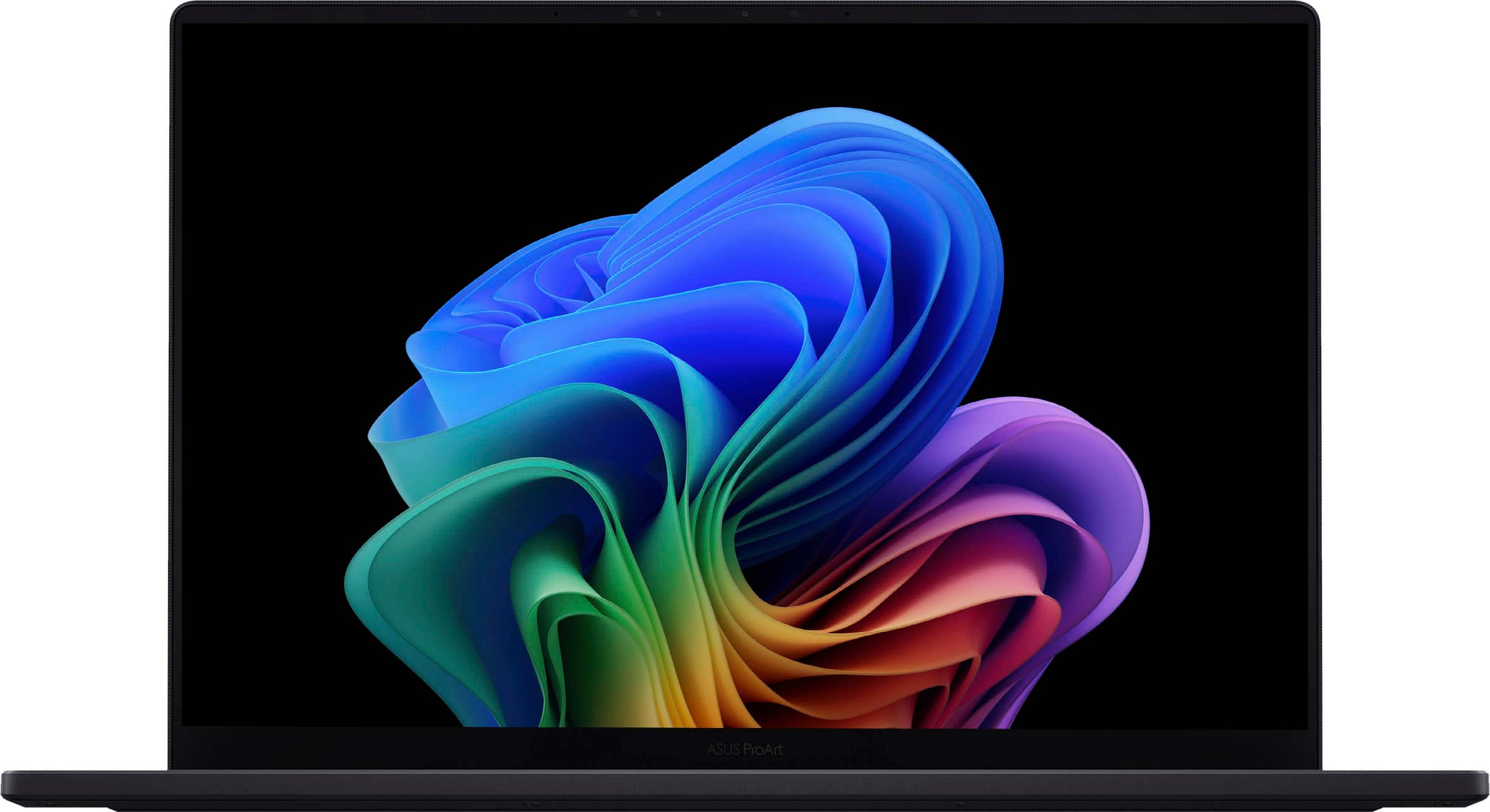
Best value Windows laptop: Lenovo Yoga Pro 7i Aura Edition (Core Ultra 9, RTX 5060, 32GB)
$2,199.99 at Best Buy for a 15.3-inch 3K OLED, 32GB of RAM, a 1TB SSD, a Core Ultra 9 386H and an RTX 5060 with 8GB of video memory. That’s the spec I’d write down for a Lightroom machine, in the 2026 model, at $1,800 less than the ProArt. The Yoga Pro 7i Aura Edition is the value pick on that gap alone. 32GB keeps Lightroom Classic out of swap on a big catalogue with Photoshop open beside it, the RTX 5060 meets Adobe’s 8GB bar for Denoise, and the 15.3-inch panel splits the difference between the two MacBook Pro sizes.
Two concessions against the MacBook Pro. Lenovo’s figure for the panel is 100 percent DCI-P3 with no third-party calibration badge, so budget for the calibrator in the What matters section, and there’s no SD slot. The cheaper machine I’ve verified is the MacBook Air 13, below.
Best compact Windows laptop: HP OmniBook Ultra 14 (Core Ultra X9, 32GB)
14-inch 3K OLED touch, 32GB of RAM, a 1TB SSD and a 2026 Core Ultra X9, $2,399.99 at Best Buy. The OmniBook Ultra 14 is the Windows laptop for the photographer who wants the 14-inch MacBook Pro’s footprint but is stuck on Windows for a tethering app or a studio’s software. HP’s figure for the panel is 100 percent DCI-P3.
There’s no discrete GPU in this configuration. Adobe’s 16GB shared-memory requirement is the one that applies, 32GB clears it, and Denoise runs; expect it to take longer than on the two RTX machines above. You’re retouching on a 14-inch canvas and there’s no card slot, and at $2,399.99 it’s $200 more than the Yoga with its RTX 5060 and bigger screen, so the OmniBook is the pick only when size is the constraint. The cheaper compact machine is the MacBook Air 13 (M5), next.
Best budget: Apple MacBook Air 13 (M5)
$1,149.00 at Amazon, down from a $1,299 list, for the M5 with 16GB of unified memory and a 512GB SSD. 16GB is Adobe’s recommended RAM for Lightroom Classic and also its shared-memory requirement for the AI tools on Apple silicon, so the MacBook Air 13 (M5) runs the full feature set, Denoise included, on the base configuration.
What you lose is the XDR panel and the SDXC slot. The Air’s 13.6-inch Liquid Retina display covers P3 but isn’t the factory-calibrated XDR panel and has lower peak brightness, and a card reader lives in the bag. The 512GB SSD fills fast with raw files, so pair it with an external SSD and the routine in my travel offload and backup workflow guide. The MacBook Air 15 (M5) with the same 16GB and 512GB is $1,499.00 at Best Buy, and the bigger screen is worth the $350 if the Air is going to be your only display.

How the picks compare
| Laptop | Price (Oct 26, 2026) | Screen | Color claim | RAM / SSD | GPU for Denoise | SD slot | Where |
|---|---|---|---|---|---|---|---|
| MacBook Pro 14 (M5 Pro) | $2,478.00 | 14.2-inch XDR, 3024 x 1964 | Factory calibrated P3 (Apple) | 24GB / 1TB | 16-core, shared memory | SDXC | Amazon |
| MacBook Pro 16 (M5 Pro) | $2,799.00 | 16.2-inch XDR, 3456 x 2234 | Factory calibrated P3 (Apple) | 24GB / 1TB | 20-core, shared memory | SDXC | Best Buy |
| ASUS ProArt P16 | $3,999.99 (64GB / 2TB config) | 16-inch 4K OLED touch | 100% DCI-P3, Calman Verified (ASUS) | 64GB / 2TB | RTX 5070, 8GB | SD reader (ASUS spec; card size unconfirmed) | Best Buy |
| Lenovo Yoga Pro 7i Aura Edition | $2,199.99 | 15.3-inch 3K OLED | 100% DCI-P3 (Lenovo) | 32GB / 1TB | RTX 5060, 8GB | None | Best Buy |
| HP OmniBook Ultra 14 | $2,399.99 | 14-inch 3K OLED touch | 100% DCI-P3 (HP) | 32GB / 1TB | Integrated, shared memory | None | Best Buy |
| MacBook Air 13 (M5) | $1,149.00 (list $1,299) | 13.6-inch Liquid Retina | P3 (Apple) | 16GB / 512GB | M5 integrated, shared memory | None | Amazon |
What matters
Panel coverage and calibration
P3 coverage is the floor, and every pick clears it. What separates them is whether the maker calibrates the panel before it ships and says so. Apple calibrates each XDR panel to P3 at the factory; ASUS ships the ProArt P16 Calman Verified. Lenovo and HP quote 100 percent DCI-P3 for the Yoga and the OmniBook, which is a gamut claim rather than a calibration claim: a panel can cover the whole gamut and still sit visibly warm out of the box. I’ve sat in front of plenty of those.
Buy a calibrator whichever laptop you pick. The Calibrite Display Pro HL is $249.02 at Amazon; it profiles every panel above, pulls an ageing factory calibration back into line, and matches the laptop to the desktop monitor next to it. Capture One’s own recommendation is a calibrated display at 1920 by 1200 or higher, which every pick clears easily. Print is the exception: none of these makers publishes an Adobe RGB figure for its laptop panel, so if you soft-proof in Adobe RGB you still need a desktop monitor rated for it.
16-inch or 14-inch
Retouching wants the 16-inch. Layer stacks, the histogram, the tone curve and the file itself all fight for one screen, and the 16.2-inch MacBook Pro gives that layout about 30 percent more room than the 14.2 at the same pixel density. Culling, color and client delivery don’t need it, and a 14-inch machine fits on an airline tray, which I care about more than I’d like to admit. The 15.3-inch Yoga is the middle option.
RAM: 32GB is the default
Adobe recommends 16GB or more for Lightroom Classic, and 16GB works. I default to 32GB because it stops the swapping on a large catalogue when Photoshop is open next to Lightroom. On Windows that means 32GB of system RAM plus the GPU’s own 8GB. On a Mac the memory is shared between CPU and GPU, so the 24GB MacBook Pro configurations I’m pricing clear Adobe’s 16GB shared-memory bar with the catalogue in what’s left; go to 32GB on a Mac if your catalogues run past six figures of images or you keep layered 16-bit Photoshop files open all day.
The SD slot
The two MacBook Pro models are the only picks with a full-size SDXC slot. The MacBook Air, the Yoga and the OmniBook have none, and ASUS lists an SD reader on the ProArt P16 that I haven’t confirmed as full-size. A $20 reader fixes this, but a slot in the body is one less thing to forget, and on a shoot it’s the difference between offloading in the car and offloading at the hotel.
Battery
Apple rates both MacBook Pro sizes at up to 24 hours of video playback, the 14 on a 72.4 watt-hour battery and the 16 on 100 watt-hours. There’s no comparable published figure for the Windows picks, and a laptop with an RTX 5060 or 5070 driving an OLED panel won’t get anywhere near those numbers unplugged. If a full day of culling in the field without a charger is part of the job, buy one of the two MacBook Pros.
The GPU, and where it counts
Adobe’s requirement is the only GPU spec a photo editor needs to check, and coming from the video side, where VRAM is the whole argument, that took me a minute to accept. Lightroom Classic’s GPU-accelerated AI features, Denoise, Lens Blur and Reflection Removal, need 8GB of dedicated GPU memory or 16GB of shared memory. Capture One recommends an 8GB or larger dedicated GPU on Windows. Every pick meets the bar, and past the bar no photo task rewards a bigger card. If you run batch Denoise on a thousand frames a week you’ll feel the gap between integrated graphics and an RTX card, so take the Yoga or the ProArt over the OmniBook.
FAQ
How much RAM do I need for Lightroom on a laptop?
Adobe recommends 16GB or more for Lightroom Classic. 32GB is my default because it keeps a large catalogue out of swap with Photoshop open at the same time; 24GB on a MacBook Pro sits between the two and is the configuration I’m pricing here.
Is a MacBook Air good enough for photo editing?
Yes. Lightroom and Photoshop run on the 16GB configuration, Denoise included, which is why the MacBook Air 13 (M5) at $1,149.00 is my budget pick above. What it gives up against the MacBook Pro is the factory-calibrated XDR panel and the SDXC slot, so run a calibrator on it and carry a reader.
Do I need a dedicated GPU for photo editing?
No, unless you’re on Windows and want Denoise, Lens Blur and Reflection Removal at full speed. Adobe’s requirement for those features is 8GB of dedicated GPU memory or 16GB of shared memory. On a Mac, 16GB of unified memory meets it. On Windows, an RTX 5060 with 8GB meets it, and the step up to an RTX 5070 adds nothing for stills.
Related guides
The same laptops ranked for the timeline instead of the raw file are in my best laptop for video editing guide. If the machine is going to live on a desk most of the year, best Mac for video editing and Mac mini vs Mac Studio cover the desktop money. For culling on a tablet, see best iPad for video editing, and for keeping cards safe between the shoot and the catalogue, the travel offload and backup workflow is the routine I use.


