So you launch Premiere Pro, open your project, start editing, and… LAG. UGH… guess you’ll just work through it as “that’s just Premiere Pro.” Well… no. Premiere Pro is a very fast and responsive software, it just has to be configured with the proper hardware. If you are editing anything more complicated than a video of your furry friend, you need to make sure your PC is optimized for Premiere Pro or you will encounter a significant increase in Premiere instability and a decrease in editing efficiency. Now, we all know that Premiere Pro is the most stable software in the world and literally never crashes. Oh wait… but what if it could be true?? Intrigued? Of course. Let us begin.
Specing your System
Having worked with large amounts of editors and VFX artists over the years, I’ve started to see certain patterns emerge based on the type of hardware they are using and what works the best. Now, I won’t be going over exactly how to build your system. But I will be going over some key items you should have installed. This includes, how much RAM you need to edit 4k video, the best video card for editing, and the types of drives you should never use if you value your footage.
Random Access Memory (RAM)
With the prevalence of 4K video among today’s editorial projects, overlooking the amount of ram you have in your system might determine whether you can focus on the art of editing… or cosplay as the BestBuy Geeksquad while you try and figure out why Premiere keeps crashing. In general, you need a minimum of 32GB for 1080p footage, 64GB for 4K footage, and 128GB for 6K footage.
When buying RAM, make sure you choose a decent brand and not just the cheapest one… otherwise, it could fail and, while you probably won’t lose data, you’d end up with a nice foot warmer until a replacement stick arrives.
The RAM I recommend:
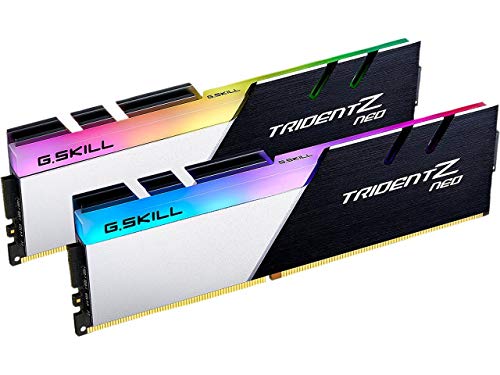
Don’t call me a fanboy, but I run Corsair myself and have for years. Their RAM has always been reliable, fits in just about any build, and has never once given me a reason to switch.
You’ll notice RAM is sold at different speeds. Honestly, don’t lose sleep over it. As long as it’s not abhorrently slow, capacity matters way more than frequency for editing, and I’ve never had a render thank me for a few extra MHz. If Corsair isn’t available, I also recommend G.Skill, and Crucial.
For laptops, you need a slightly smaller type of RAM offered here by the likes of G.Skill and Crucial.
One thing to check before you buy: match the RAM to your motherboard. Any current build, including the Intel and AMD chips I get into below, runs DDR5, so that’s what most of you want. The “budget” option being Crucial and the “premium” option being Corsair. Now, fair warning: there’s a brutal RAM crunch right now and DDR5 prices are straight-up painful. So if you’re already on a DDR4 platform, or building budget on one to dodge the madness, run DDR4 and don’t feel bad about it for a second. Capacity matters way more than the generation for editing, and your footage will never know the difference.

The CPU: pick your team
Your processor does the unsexy heavy lifting: timeline responsiveness, the effects that aren’t GPU-accelerated, and a big chunk of every export. For editing you want plenty of cores for the render grunt and strong single-core speed so scrubbing the timeline stays buttery. Two chips own this right now, one from each team.
On the Intel side, the Core Ultra 9 285K is the flagship, and it’s the one I run myself. 24 cores (8 performance + 16 efficiency) on the Arrow Lake platform, and it chews through encode and export like it’s nothing. This is the chip sitting in my own machine.

Prefer team red? The Ryzen 9 9950X3D is the one to get. 16 Zen 5 cores and 32 threads, and it absolutely flies through renders, especially if you’re building a dedicated render box that lives on multi-core throughput.

Either one will eat 4K without blinking. Grab whichever suits your motherboard and budget. Just don’t pair a $2,000 GPU with some four-core relic and then wonder where your speed went. That’s a bottleneck you’re building on purpose.
Video Cards…
Let’s talk video cards. If you want to do any kind of GPU-accelerated effects, color grading, VFX, or work with RED footage, a good card isn’t a “nice-to-have,” it’s a requirement. Honestly, this is the part of the build I’d tell you to spend on first.
RTX is a gamechanger
RTX itself is only useful for VFX, ray-traced rendering, and gaming. However, within these RTX cards are a plethora of Tensor and CUDA cores. These Tensor cores speed up AI-powered effects immensely. One software that benefits the most from this is Davinci Resolve. When it comes to denoising, speed warp, optical flow, and super scaling, these RTX cards are an absolute game-changer. The CUDA cores, on the other hand, help with video encoding and decoding. The more you have, the faster.
For most editors, the PNY RTX 5070 Ti is the sweet spot. 16GB of GDDR7, plenty of CUDA and Tensor cores, and it won’t make your wallet cry. Editing above 4K, or living in Resolve all day? Step up to the PNY RTX 5080 for the extra headroom. And if you want the most power on the table, the PNY RTX 5090 is what I run these days. 32GB of GDDR7 and a frankly stupid number of cores. It handles anything I throw at it, 8K RAW included, without flinching.
“Should I get two cards?” Probably not. A single strong card like the ones above will serve you better than two older ones fighting for attention. Premiere barely knows what to do with a second GPU, and NV-link won’t help you here either. That’s a gaming thing. Resolve Studio can actually put a second card to work if you’re grinding heavy noise reduction and grades all day, but for most editors, one good card is the move. Spend the savings on RAM or a faster drive.
Quick note on brands. For years I ran EVGA and owned maybe 9 or 10 of their cards without a single serious issue. Sadly, they bowed out of the GPU game back in 2022, so that ship has sailed. These days I’m on PNY and it’s been rock solid. Whatever you pick, stick with NVIDIA. AMD Radeon still doesn’t have CUDA, so for the Premiere and Resolve pipeline they’re basically dead to me.
-
 Check Price
$999.99$954.99We earn a commission if you make a purchase, at no additional cost to you.
06/20/2026 10:00 am GMT -
Check Price$1,249.99
We earn a commission if you make a purchase, at no additional cost to you.
06/20/2026 10:00 am GMT -
Check Price$4,599.00
We earn a commission if you make a purchase, at no additional cost to you.
06/20/2026 10:00 am GMT


Storage: What to use and what to avoid
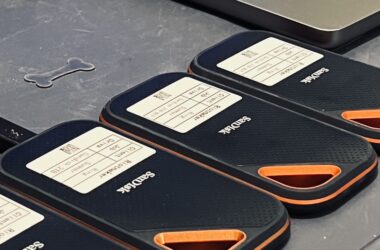
The most common bottleneck in the video pipeline is slow storage. So many times I’ll see people editing off a $5000 computer and be like, “OMG Premiere is so slowwww” only to then notice they are editing off one of these awful things. Not only are those portable HDDs terribly slow, but they also fail. And unfortunately, I have witnessed this happen multiple times. With that being said, let’s get into what storage to use.
Ask anyone who’s worked with me, I love these drives
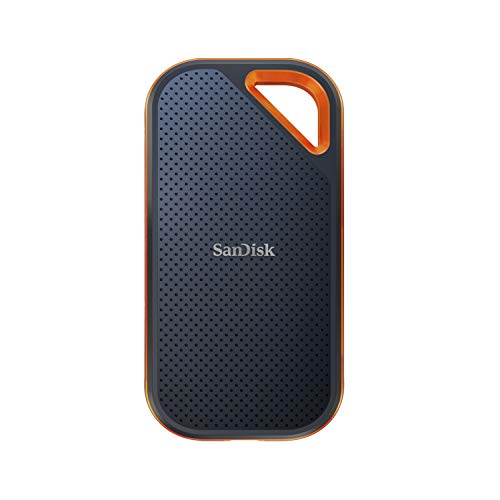
Legit, The SanDisk Extreme PRO is the best drive I’ve ever owned… I am a keeper of four of them in fact! They are crazy durable, made very solidly, super-fast, never overheat, and best of all they are water/dust/shockproof. If you are a laptop editor, you will also benefit from the increased battery life as they consume less energy than their mechanical counterparts.
Normally, I’d offer an alternative drive… but to be honest… this is the one.
The drive is fast, durable, and ready for anything. With up to 2000MB/s read/write speeds in a forged aluminum chassis that acts as a heat sink - this portable solid-state device will give you performance anywhere productions take you. I own like 8 of these things 😅
What about internal drives?
Maybe not as important as external drives, but still important. Speedy internal drives ensure that the background processes of Premiere; video cache and waveform generation for example. You need to ensure that they are not getting bottlenecked by slow media storage thereby slowing down your entire project and decreasing. Personally, I recommend having your OS and Premiere Pro on an internal nVME SSD, your Adobe cache on a separate nVME SSD, and then your scratch disks on a (yet another) separate nVME SSD.
I’ve always run Samsung for my internal disks. They’ve never failed me and they’re widely accepted as the best in the industry. My current pick is the Samsung 9100 Pro, a PCIe 5.0 drive that hits up to 14,800 MB/s, roughly double the old 990 Pro. It’s absurd, and for cache and scratch work that speed genuinely shows. If your board is still on PCIe 4.0, the 990 Pro is a fantastic, cheaper pick. Either way, if you want a deeper dive on drives, I rounded up my favorite SSDs here.
If you can only swing buying 2 SSDs, it’s okay to put the scratch disk where the external media lives. I’d only recommend that if the external media is on fast storage (like the aforementioned SanDisk Extreme PRO).

In Conclusion
I know… all of this is a bit of an investment. However, at least now you can stop worrying (to an extent) about Premiere crashing, losing project saves, and interrupting your flow. Instead, you can hit deadlines, focus on your craft, and reduce your stress level (if ever so slightly).
In the next article, I will be going over how to set up Premiere Pro on the software side and ensure all of your hardware is running the way it should.