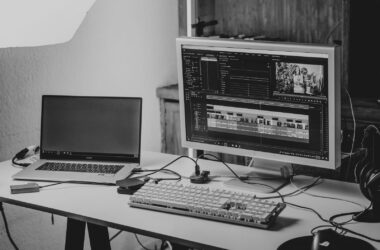
Every edit suite I’ve ever built started the same way: a machine on whatever table was free, a monitor at whatever height the box put it, and a promise to sort the room out later. Later never comes on its own. The gear guides on this site will tell you which Mac, which monitor, which NAS… this one is about the thing none of those can cover, which is the room they all have to live in. Where the desk goes. What’s behind the monitor. Why your Wi-Fi is sabotaging your storage. How to make the same ten by twelve feet work for a solo trim pass at midnight and a client review at 2 p.m.
Below: the room-level decisions in order of how much they matter, then three complete example builds with real prices, from a corner of the bedroom to a suite you can bill clients in.
Last updated: August 2026. Some links below are affiliate links; buying through them supports the site at no cost to you. Prices are August snapshots; the big-ticket items link out to their full guides, which stay current on a faster cadence.
TLDR
If you just want the answer: put the monitors perpendicular to the window, hang a 6500K bias light behind the display, run one flat Cat6 cable to wherever the NAS lives, and spend whatever’s left on the chair. Those four moves cost less than a mid-range GPU and improve every hour you spend in the room. The three builds below run about $2,300, $6,400 to $7,100, and $14,600 to $16,100; the spread in the bigger two is the displays.
The room decisions, in order of impact
1. The desk and the window
Monitors go perpendicular to the window. Not facing it (you’re squinting into backlight all day and silhouetted on every call), and not backed against it (every bright window behind you lands on your screen as a contrast-killing reflection). Side-on, the light never crosses the screen axis and the room still feels like a room. If the layout forces a bad orientation, blackout cellular shades or lined blackout curtains fix it for under a hundred dollars, and they pull double duty softening the room’s acoustics.
If you grade, the window eventually has to go fully dark anyway; color work in a bright room is guesswork with extra confidence. For everyone else, “perpendicular plus curtains” is the whole assignment.
2. Bias lighting (the $94 color-accuracy upgrade)
Your eye judges contrast and color relative to whatever surrounds the screen. Edit against a dark wall and your brain inflates the display’s contrast, so you grade shadows brighter than they are and your eyes do extra work every minute. The fix is a light strip behind the monitor washing the wall at roughly a tenth of the display’s brightness, at the same white point the display targets: D65, 6500K.
The catch is that “6500K” on a cheap RGB strip is three spiky LED colors doing an impression of white. The MediaLight Mk2 v2 is the purpose-built answer: real 6500K at CRI 98, flicker-free dimming, USB powered, from $72.94 for the one-meter strip (a 27-inch monitor wants the 2-meter, $93.94). It’s a direct-buy from the maker, no retailer carries the current version, and it’s the one accessory I tell every editor to steal from the colorists. If you set up a client TV later, its larger sizes wrap that too.
3. Monitor height, distance, and the arm
Top of the screen at or just below eye level, about an arm’s length plus a hand away for a 27-inch 4K. Almost no stock stand gets a monitor high enough over a desk, which is why a monitor arm stops being a luxury the day you notice your neck. The Ergotron LX ($219) is the default for anything up to 25 pounds; heavier reference displays and 32-inch panels want the HX. An arm also frees the desk under the display and lets you push the monitor past the desk’s back edge, which solves the viewing-distance problem on a shallow desk. Full geometry math lives in the chair and desk guide.
4. The network drop (you cannot edit over Wi-Fi)
Editing off a NAS over Wi-Fi doesn’t work. Sustained multi-hundred-megabit reads with zero tolerance for latency spikes is precisely the traffic Wi-Fi handles worst; the scrub stutters, the conform drops frames, and people blame the NAS. The fix costs about a hundred dollars: one flat Cat6 run along the baseboard (30 feet, about $15) into a small 2.5GbE switch like the TP-Link TL-SG108-M2 ($59.99). If your NAS guide pick has a 10GbE port, Ubiquiti’s Flex 2.5G (~$159) gives it a 10G uplink to grow into. This is the least glamorous purchase in the whole room and the one that makes the expensive storage behave like it was advertised.
5. Heat, noise, and where the machines live
A Mac Studio is silent and this section barely applies to it. A modern RTX tower is a 400-to-800-watt space heater with fans, and a small closed room will absolutely notice. Rules: the tower goes under the desk on the far side, never in a closed cabinet (it needs the airflow, and the cabinet becomes an oven). And the NAS, with its 24/7 drive chatter, wants to be outside the room entirely… a closet, the garage, anywhere the Cat6 run reaches. That’s half the point of decision number 4. If the machines must share your air, the drive-noise section of the NAS hub covers which boxes run coolest.
6. Two lighting states: work and client
The room needs two moods. Working: dim, indirect, bias light on, nothing bouncing off the screen. Client session: warmer, brighter, still indirect, because nobody relaxes into notes under an overhead light. The cheap version is two floor lamps with smart bulbs and a “client” scene that switches both in one tap; a smart power strip like Kasa’s KP303 ($29.99, three individually controlled outlets) runs the lamps, the bias light, and the accent lighting off one schedule. This is thirty dollars of theater that makes a bedroom suite feel like a facility when someone’s paying to sit in it.
7. Power and cables (the five-minute versions)
Everything on the desk plugs into an under-desk cable tray and one surge strip, and if the desk is a sit-stand, exactly one cable (the mains lead) is allowed to reach the floor… that’s the entire secret of desks that survive height changes. Real power protection (pure sine wave, the NAS shutdown handshake, why the gaming UPS is a costume) has its own guide: the UPS guide. Read it before the first thunderstorm, not after.
Build 1: the corner (~$2,300)
One editor, one corner of a shared room, cutting real work. The discipline at this tier is what you skip: no NAS (a portable SSD from the portable drives guide is your storage), no speakers (you share air with other humans; the headphones guide is your monitoring section), no motorized desk.
| Piece | Pick | About |
|---|---|---|
| Machine | Mac mini (M4, 24GB/512GB) | ~$999 |
| Display | 27″ 4K (budget rung of the monitor guide) | ~$450 |
| Arm | Ergotron LX | $219 |
| Bias light | MediaLight Mk2 v2, 2m | $93.94 |
| Headphones | Sony MDR-7506 (headphones guide budget pick) | ~$100 |
| Chair | Branch Ergonomic (chair guide budget pick) | $359 |
| Power + cables | Surge strip, tray, curtains | ~$110 |
Call it $2,300 with the storage you already own. Nothing here is a placeholder; every piece survives into the bigger builds, which is the actual test of a starter setup.
Build 2: the dedicated room (~$6,400 to $7,100)
A spare room with a door. This is the build where the room-level decisions start paying rent: the NAS moves outside the room via the network drop, speakers replace headphones as the primary monitoring, and the desk starts moving.
| Piece | Pick | About |
|---|---|---|
| Machine | Mac Studio (M5 Max) | $2,499 |
| Displays | Grading-capable 27 to 32″ + second 27″ UI monitor | ~$1,200 to $1,900 |
| Speakers | Kali LP-6 V2 pair (monitors guide budget pick) | ~$500 |
| Storage | 4-bay NAS + drives (NAS hub), living outside the room | ~$1,100 |
| Network | TL-SG108-M2 + flat Cat6 run | ~$75 |
| Desk | FlexiSpot E7 Pro frame + top (chair/desk guide) | ~$350 |
| Bias light | MediaLight 4m | $124.94 |
| Power | CyberPower CP1500PFCLCD (UPS guide) | $239.95 |
| Acoustics | Rug, curtains, 3 mineral wool panels (acoustics guide Tier 1) | ~$350 |
About $6,400 to $7,100 before the chair, depending on the displays, and the chair guide’s whole argument is that this is where the remaining budget goes. The one price to watch: the LP-6 V2’s stock situation has been marketplace-thin all year; if it’s over $500 a pair the week you’re shopping, the monitors guide has the alternates.
Build 3: the client-ready suite (~$14,600 to $16,100)
The room that earns money while someone else sits in it. Everything from Build 2, upgraded where clients can see and hear the difference, plus the piece that changes the psychology of a review session: a proper client monitor they can watch like a TV, because it is one.
| Piece | Pick | About |
|---|---|---|
| Machine | Mac Studio upgraded, or the VFX workstation build | ~$3,000 |
| Grading display | Reference-adjacent pick from the monitor guide | $1,500 to $3,000 |
| Client TV | LG C6 65″ OLED, fed clean via UltraStudio (the TV-as-client-monitor guide) | $1,999.99 |
| Speakers | ADAM A7V pair (monitors guide endgame) | ~$1,500 |
| Chair | Herman Miller Embody | $2,090+ |
| Desk + arms | Sit-stand + LX/HX arms | ~$700 |
| Storage + network | 8-bay NAS + 10GbE | ~$2,500 |
| Acoustics | GIK panels + corner traps (acoustics guide Tier 2+) | ~$600 |
| Bias + scene lighting | MediaLight 7m behind the TV + smart scene | ~$325 |
| Power | UPS pair per the UPS guide topology | ~$420 |
Around $14,600 to $16,100, the spread being the grading display. For context, that’s the day rate of a mid-tier commercial suite for about two weeks, and this one’s yours. The TV deserves its own note: a C-series OLED fed a clean signal through an UltraStudio is the single biggest perceived-production-value upgrade a client ever notices, and the full signal-chain how-to is in the TV-as-grading-monitor guide.
FAQ
What should I upgrade first in an existing setup?
In impact order for most rooms: chair (if yours is bad, everything is bad), bias light, monitor arm, network drop, acoustics. The machine is deliberately last; a faster computer improves renders, but the first five improve every minute of every day.
Can the client TV double as my grading monitor?
With eyes open, yes: a calibrated C-series OLED fed through an UltraStudio is a legitimate budget grading path, and the TV guide covers the setup, the calibration, and the caveats. In a client-ready suite I’d still keep a desk display for the UI and let the TV be the picture.
Is a second monitor worth it for editing?
For most editors, yes, and it doesn’t need to be fancy: the second display holds bins, scopes, and the client call while the good panel holds the picture. A $400 27-incher next to a grading display is how most working suites end up laid out.
I rent. How much of this can I do without drilling?
Almost all of it. Flat Cat6 runs under baseboards with removable clips, acoustic panels hang on adhesive picture hooks or lean on furniture, the bias light sticks to the monitor itself, and curtains use tension rods. The only landlord-sensitive item in the whole plan is a wall-mounted client TV, and a stand solves that.
In conclusion
A good edit suite is mostly decisions, not purchases: which wall, which height, which cable, which light. The purchases are covered piece by piece in the guides this one links to… monitors, storage, speakers, headphones, chair, power, acoustics, and the client TV. Build 1 today doesn’t preclude Build 3 next year; every piece carries forward, which is the way I’d spend my own money and the way I built the room I’m typing this in.
And that’s it! Perpendicular to the window, D65 behind the screen, copper to the NAS, money in the chair. As always, what you see here is what works for me and my rooms; yours will bend the plan, and that’s fine. Show me your layout problems in the comments and I’ll tell you where I’d put the desk.